Upgrading the drive is one of the few laptop upgrades that still delivers a dramatic, immediately felt improvement, and on many machines it is genuinely straightforward. The two things that trip people up are buying a drive that does not fit, and choosing badly between cloning the old drive and starting fresh. Both are avoidable with a few minutes of checking.
What to check before buying
The critical question is what your laptop physically accepts, and it is not always what it looks like. There are two common shapes and they are not interchangeable even when a slot appears to fit.
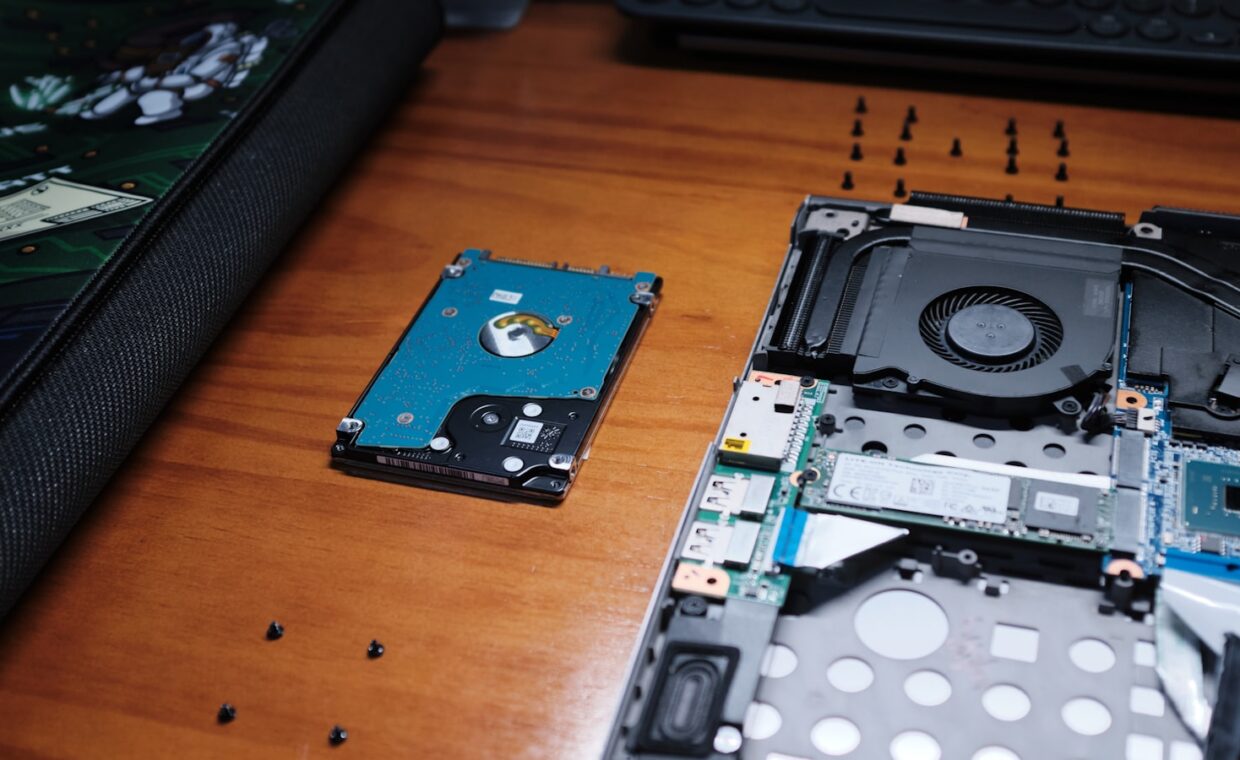
- Form factor. Modern laptops mostly use an M.2 stick, but older and some budget machines use a 2.5-inch drive. They are entirely different shapes.
- Interface. An M.2 slot can be wired for fast NVMe, slower SATA, or both. A SATA-only slot will not run an NVMe drive despite the connector fitting. This is the trap that catches most people, and confirming it means reading the service documentation rather than trusting the slot’s appearance.
- Length. M.2 sticks come in several lengths. Confirm which your machine takes.
- Thickness. A double-sided module may not clear the chassis in a slot designed for single-sided drives.
These are exactly the specifications that decide compatibility and are rarely on the marketing page, the pattern our piece on reading a laptop spec sheet keeps returning to. The manufacturer’s service manual is the authority.
Opening the machine safely
- Back up everything first. An upgrade should never be your only copy of anything.
- Find the service manual for your exact model, because screw lengths differ by position and a long screw in a short hole damages the board.
- Power down fully, unplug, and discharge static by touching something metal and grounded before handling components.
- Disconnect the internal battery connector before touching the storage, the same precaution the walkthrough on working near a laptop battery stresses, because a swollen or live cell is a genuine hazard.
- Seat the new drive at the correct angle, secure it, and confirm it is fully home before reassembling.
Clone or clean install
This is the fork that matters most, and the honest answer is that a clean install is usually better.
| Cloning | Clean install | |
|---|---|---|
| Effort | Lower, if it works first time | Higher, reinstall and reconfigure |
| Result | Exact copy, including accumulated clutter | Fresh, fastest possible state |
| Risk | Clone can fail to boot | Reliable, but you rebuild your setup |
| Best when | The current setup is complex and healthy | The machine had grown slow or cluttered |
Cloning copies everything, which includes years of accumulated background software that may have been the reason the machine felt slow in the first place. If part of your motive for upgrading was sluggishness, a clean install addresses causes that a clone simply carries across, and the full process is set out in our guide to reinstalling a laptop system cleanly. If the current setup is elaborate and working well, cloning saves rebuilding it, provided you have a way to connect both drives at once.
When the new drive is not detected
A new drive that does not appear is usually one of three things. Most often the slot is SATA-only and the drive is NVMe, so the connector fit but the interface did not match. Sometimes the drive is not fully seated, which is easy to get wrong at the insertion angle. Occasionally the firmware needs the storage mode set correctly before it will see the drive, which is one of the genuinely useful reasons to know your way around the settings covered under the firmware options that actually matter.
Once the drive is recognised and the system is installed, the improvement is immediate: faster boot, near-instant application launches, and the end of the stalls that come from a full or failing old drive. The mechanics of why a fast drive transforms responsiveness, and how these drives age, are covered in the article on how solid state drives wear and behave over time. If you also want to keep the machine reliably online during the upgrade and after, it is worth confirming the wireless side is healthy too, using the steps in the piece on fixing a laptop that keeps losing Wi-Fi. Some models also let a newer drive quietly run hotter, so watch temperatures on a thin machine. On a thin machine that is the main thing to watch after the swap.
What the upgrade does and does not fix
A drive upgrade transforms responsiveness, but it is worth being clear about what it addresses. It fixes slow boots, sluggish application launches, and the stalls of a full or failing drive. It does not add memory, so a machine that runs short of memory will still stall when switching between heavy applications after the upgrade. It does not improve graphics, and it does not make a thermally limited processor sustain higher clocks. If the machine was constrained by one of those, the drive helps everything except that specific bottleneck.
For most older laptops, though, storage is the constraint that matters, because a slow or nearly full drive touches every single thing the machine does. That is why the drive upgrade so often feels like a new computer when memory upgrades feel merely helpful. Pairing a fresh drive with a clean install gives the largest improvement a few years of use can take back.
Common questions
How do I know which SSD fits my laptop?
Check three things in the service manual: the form factor (M.2 or 2.5-inch), the interface the slot is wired for (NVMe, SATA, or both), and the length and thickness the slot accepts. An M.2 slot that is SATA-only will not run an NVMe drive even though the connector fits, which is the most common mistake.
Should I clone or reinstall when upgrading?
A clean install is usually better, because cloning copies years of accumulated software that may have been slowing the machine down. If the current setup is complex, healthy, and you would rather not rebuild it, cloning is fine, provided you can connect both drives at once. If the machine felt slow, a clean install addresses causes a clone carries across.
Why is my new SSD not detected?
Most often the slot is wired for SATA only and the drive is NVMe, so it fit physically but not electrically. Next most likely, the drive is not fully seated. Occasionally the firmware storage mode needs setting before the drive appears. Check interface compatibility first, then reseat, then the firmware.