Photos pile up on phones, project files live on one laptop, and everyone in the house keeps a slightly different copy of the same folder. A home file server pulls that scattered storage into one place that stays on and stays reachable. Building one is less about raw speed and more about steady, quiet, always-on service. This guide covers how to size the disks, why your network usually caps transfer speed, what the machine costs to run around the clock, and how to keep the server itself protected rather than left as the only copy.
Storage layout and redundancy
The first real decision is capacity, so estimate what the household stores now, phone photo libraries, a media collection, and documents, then roughly double it to leave room for a couple of years. Media, video especially, dominates most home totals. That number sets how many drives you need. Redundancy is the next choice: a mirror keeps two drives holding identical data so either can fail without loss, while parity schemes give more usable space and still tolerate a failure. Redundancy protects only against a dead disk, not deletion, corruption, or theft, since those changes copy straight across. Many first servers begin with hardware already owned, and the guide on turning a spare laptop into a quiet always-on host covers that route.
The network as the real bottleneck
The disks inside a modern server usually read and write faster than the network can carry that data to other machines. A wired gigabit link tops out near 110 megabytes per second in practice, slower than a single mechanical drive and far slower than an SSD. Wi-Fi is worse and less predictable, dropping under interference or distance. So the connection between the server and your main devices matters more than paying for the fastest disks. Where you can, wire the server to the router and reserve wireless for phones and tablets that move around. The speed the household actually feels comes from that link, not the drive specification.
Power draw across an always-on year
A file server earns its keep by staying on, so its idle draw matters more than its peak. A small single-board machine with one or two disks might sit around 8 to 15 watts. A repurposed desktop with several spinning drives can idle at 40 to 60 watts, every hour of the year. At typical electricity rates that gap adds up to a real sum over twelve months. Mechanical drives can spin down when idle to trim power, though frequent spin-ups add wear and delay. Measuring actual draw with a cheap plug-in meter, and tracking it over time as the guide on watching temperature and disk health describes, keeps surprises away.
Reaching files from every device
For the server to be useful, laptops, phones, and televisions all need to see it. The usual protocol is SMB, which Windows, macOS, and Linux all speak, and which most media players and phone file apps understand too. Create a shared folder, give it a name, and point each device at the server’s address on the local network. Phones need an app that supports network shares, while televisions often read media over the same protocol or over DLNA. If you later want the same box to serve a small site to visitors, the walkthrough on serving a small site from your own connection explains how that differs from plain file sharing.
Simultaneous access is worth planning for. Several people streaming or copying at once share that single network link, so size the connection for the busiest moment rather than one quiet user. Per-user permissions help as well, keeping one person’s accidental delete from reaching folders that belong to someone else.
Building the server step by step
With the plan set, assembly is short. The steps below assume a small board or a spare PC, a couple of drives, and a wired connection to the router.
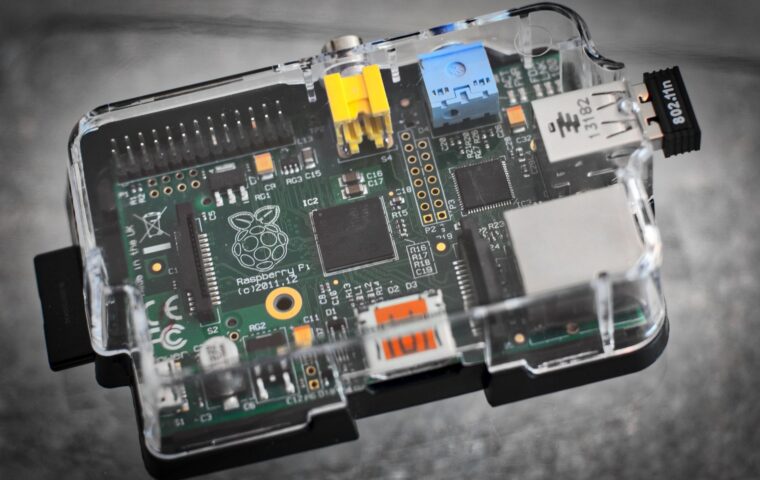
- Pick the base machine, matching drive bays and power to the capacity you estimated; a low-power board suits light duty, and the overview of the jobs a tiny computer can take on lists others it can share.
- Fit the drives and, if using redundancy, build the mirror or parity array before copying anything onto it.
- Install a server operating system, whether a general Linux distribution or a purpose-built storage system with a web interface.
- Create the shared folders and user accounts, keeping personal and shared areas separate.
- Connect the machine to the router by cable and note its local address so devices can find it.
- Copy a test batch of files, check the transfer speed, then move the real data across in stages.
Backing up the server itself
A central server concentrates risk as much as it concentrates storage. If it holds the only copy, a fire, theft, or a mistaken bulk delete takes everything at once, and internal redundancy does nothing against those. The common rule is three copies of anything important, held on at least two different media, with a single copy stored offsite. In practice the server holds the working copy, an external drive holds a local backup, and a remote or cloud location holds the offsite copy. Automate the local backup so it runs without anyone remembering, and check now and then that files actually restore, because an untested backup is only a hope.
Where this leaves you
A home file server is a modest, patient piece of infrastructure rather than a performance project. The choices that shape it are capacity, whether to run redundancy, how the data reaches devices, and what the machine costs to leave powered day and night. Get those right and the hardware can be humble, even secondhand, because the workload is light and steady.
The part people skip is the backup, and it is the part that rescues them later. Redundancy keeps the server running through a dead disk, but only a separate, tested, offsite copy protects against the events that take the whole machine. Plan for that from the start, and the server becomes the dependable centre of the household instead of one basket holding every egg.
Frequently asked questions
How do I build a home file server?
Start by estimating how much data the household holds and roughly doubling it. Choose a machine with enough drive bays, fit the disks, and set up redundancy if you want to survive a drive failure. Install a storage operating system, create shared folders, and connect the box to your router by cable. Finally, arrange a separate backup so the server is never the only copy.
What hardware do I need for one?
At minimum, a computer that can stay on, one or more drives, and a wired network connection. A low-power single-board machine suits light document storage, while a small tower with several bays fits large media libraries. Spare desktops and laptops work too. Add an external drive for local backups, and a plug-in power meter if you want to track running cost over time.
Is a home server hard to maintain?
For most households it is light work once set up. Occasional updates, an eye on drive health, and confirming that backups still run cover most of it. Problems usually announce themselves through a failed disk warning or a share that stops responding. Choosing simple, well-documented software and automating the backups keeps ongoing effort to a few minutes a month rather than a regular chore.