Two laptops with almost identical spec sheets can feel completely different the moment you start typing, and the keyboard is usually why. Beneath each key sits one of a few mechanisms, paired with choices about how far the keys move and how they are arranged across the deck. None of this shows up clearly in marketing, yet it shapes hours of daily use more than processor numbers do. Knowing how membrane, scissor and mechanical designs differ, and what terms like travel and actuation mean, lets you judge a keyboard quickly in a shop instead of discovering its faults weeks later.
The main switch designs
Most laptop keyboards use one of three approaches. A membrane keyboard presses a rubber dome against a printed circuit, cheap to make and quiet, but often mushy because the dome collapses rather than clicking. A scissor switch adds a hinged plastic mechanism under each key that guides it straight down, giving a crisper, more even press; this is what most thin laptops fit today. Low-profile mechanical switches put a shortened version of a desktop keyboard’s spring-and-stem mechanism under each key, offering a defined bump and longer life at the cost of thickness.
| Design | Feel | Typical use |
|---|---|---|
| Membrane | Soft, less defined | Budget laptops |
| Scissor | Crisp, shallow, even | Most mainstream and thin laptops |
| Low-profile mechanical | Distinct click or bump | Gaming and enthusiast models |
The mechanism also influences durability. Scissor switches are reliable but can be awkward to repair when a single key fails, while mechanical switches tolerate more presses before wearing out. The common ways these mechanisms give up are covered in the breakdown of what makes laptop keys stop responding, which is worth reading before you assume a dead key means a dead laptop. Spare parts and repair difficulty vary by brand, so a keyboard you can service cheaply may be worth more than a marginally nicer feel you cannot maintain.
What travel and actuation mean
Key travel is how far a key moves from rest to fully pressed, measured in millimetres. Desktop keyboards often travel four millimetres, while slim laptops may offer barely one. Short travel feels fast but can bottom out harshly, jarring your fingertips against the frame; longer travel cushions each stroke and gives clearer feedback. Neither is objectively better, though most typists find somewhere between 1.3 and 1.8 millimetres comfortable on a laptop.
Actuation is the point during that travel where the keypress registers. A well-designed key actuates partway down, so you feel a slight resistance the instant the letter appears on screen. When actuation and the tactile bump line up, typing feels responsive; when they do not, you either register keys you barely touched or press them all the way down to be sure they took.
Two keyboards can share the same travel yet feel unalike because of how the key resists near the top of its stroke. A gentle, progressive resistance suits fast typists, while a sharper break helps people who want clear confirmation of each press. The force a key needs matters as well, since stiffer keys reduce accidental presses but tire the hands over a long document.
Layout differences that matter
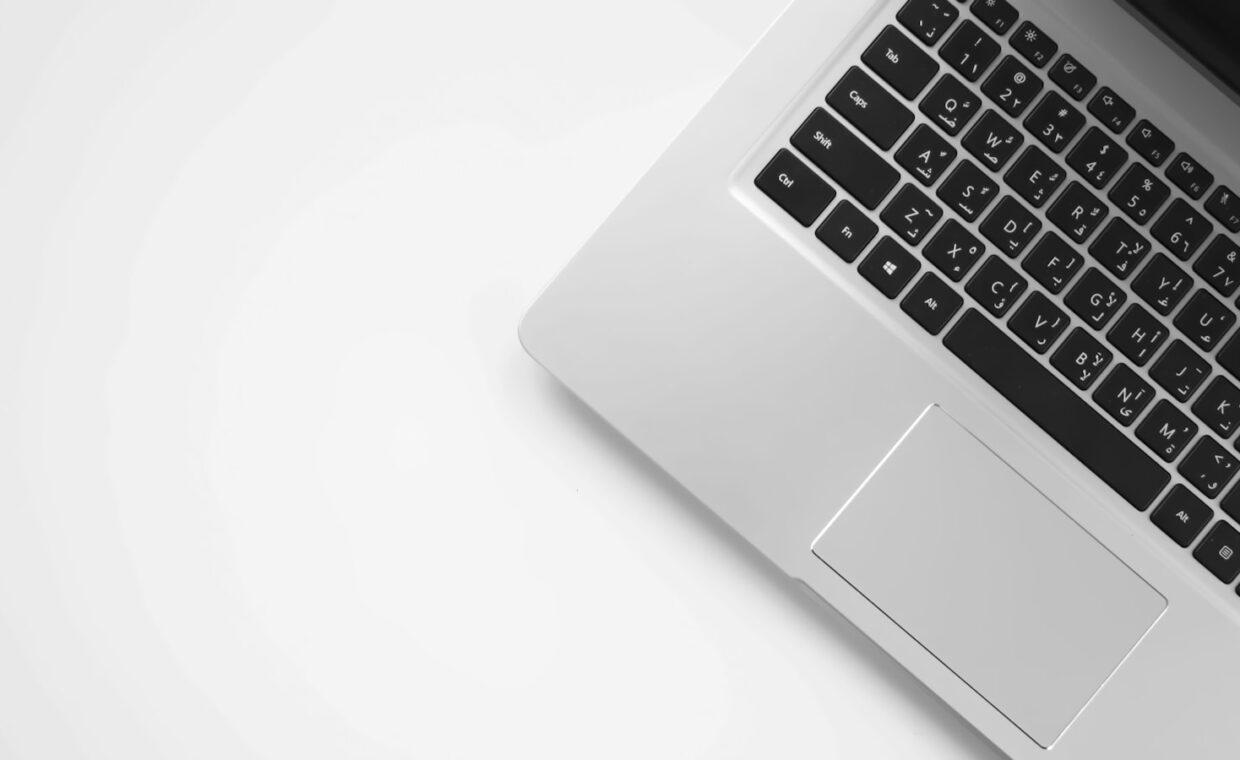
Beyond feel, the arrangement of keys changes how a laptop suits your work. Larger machines fit a dedicated number pad on the right, handy for spreadsheets but pushing the main keys and trackpad off-centre. Smaller laptops drop the numpad to keep the typing area centred. The function row across the top may be full-size or squeezed into half-height keys, and it often doubles as media and brightness controls. Key pitch, the spacing between key centres, matters too; a cramped seventeen millimetre pitch feels different from the roughly nineteen millimetres of a full-size board, and touch typists notice the change within a sentence.
Arrow keys reveal how much a maker cared. Good layouts give them full-size or an inverted-T shape set slightly apart; cramped ones shrink them into a single row where you constantly hit the wrong one. How that top row behaves, and how lighting under the keys is managed, is explained in our piece on controlling the function keys and backlight, which affects daily comfort as much as the switches do.
Trying a keyboard before you buy
Specifications rarely tell you how a keyboard feels, so test one in person when you can. Type a few full sentences rather than pressing single keys, and notice whether your fingers drift to the wrong spots, whether the keys feel even from corner to corner, and whether the deck flexes under a firm press. Flex often signals a weak chassis that will feel worse over time. Listen as well as feel, since a hollow rattle or a sharp ping suggests loose parts, and the space bar in particular shows whether the larger keys are stabilised evenly across their width.
While you are at it, run your fingers across the trackpad, since the two share the same deck and a poor one undermines an otherwise good machine. Odd pointer behaviour, described in our guide to why a cursor sometimes jumps around, is worth catching early. If you buy online without a hands-on trial, favour models with detailed written impressions of the keyboard specifically, not just the screen or battery.
Where this leaves you
The keyboard deserves as much weight as the headline components, because you touch it constantly and it rarely improves after purchase. Scissor switches suit most people well, membrane keyboards betray a cost-cut budget model, and low-profile mechanical designs reward those who type or game for hours and accept a thicker machine. Match the travel and layout to how you actually work, whether that means a number pad or a centred deck.
Keeping a keyboard feeling right also means keeping it clean, since grit under a key changes its travel and can jam it entirely. Doing that carefully, as the primer on cleaning a laptop without harming it lays out, preserves the feel you paid for. Judge the typing experience first, and the rest of the laptop is far easier to live with day to day.
Common questions, answered
What is a good amount of key travel on a laptop?
Most people find between 1.3 and 1.8 millimetres comfortable on a laptop. Below roughly one millimetre, keys tend to bottom out harshly and feel jarring; much beyond two millimetres is rare in thin machines. The right figure is partly personal, so try typing before deciding. Consistent travel across all the keys matters as much as the raw number itself.
Are mechanical laptop keyboards worth it?
They are worth it if you type or game for long stretches and value a defined, tactile press that lasts. Low-profile mechanical switches offer clearer feedback and longer life than scissor switches, but they add thickness and cost, and they can be louder. For light or occasional typing, a good scissor keyboard feels fine and keeps the laptop slimmer, so the benefit is real but not universal.
Why do some laptops skip the number pad?
Space is the reason. Fitting a number pad requires a wider chassis, and on a 13 or 14 inch laptop there simply is not room without shrinking other keys. Leaving it out keeps the main keyboard centred behind the screen and the trackpad in the middle, which many people prefer. Larger 15 and 17 inch laptops have the width to include one comfortably.