You open a photo you have not touched in five years and a bar of scrambled colour runs across it. Or a compressed archive that saved cleanly now refuses to extract, complaining that the data is bad. Nothing was edited, yet the file has changed. This quiet form of decay, where stored data alters without anyone touching it, is often called bit rot. It is real, it is measurable, and it usually goes unnoticed until the moment you need the file. Learning why bits flip and how checksums reveal the change lets you catch corruption while a clean copy still exists to restore from.
How stored bits lose their value
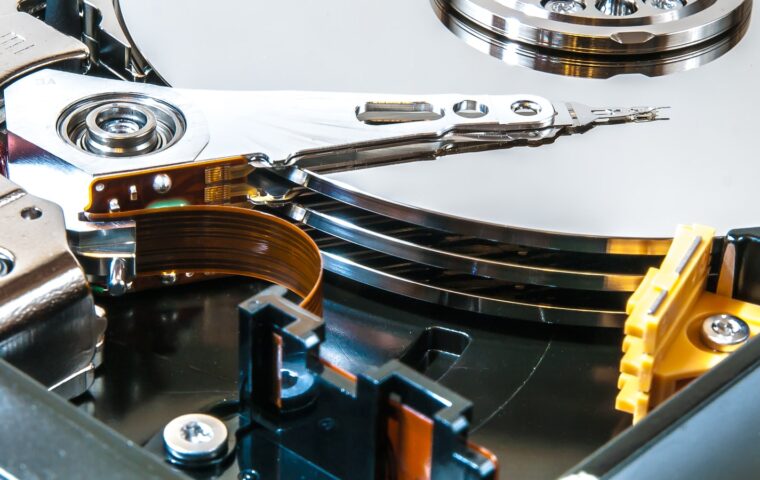
Data on any medium is a physical state standing in for a one or a zero, and physical states drift. In flash memory, each cell holds a small trapped charge, and that charge leaks slowly over years, faster when the chip is warm or the cell is worn. On a spinning hard drive, the magnetic regions that encode bits can weaken or be disturbed by a neighbouring write. Stray radiation can flip a bit outright. Controllers and cables introduce their own rare errors in transit. None of this is common per bit, but a modern drive holds trillions of bits, so a handful of flips across its life is expected rather than exceptional. Flash carries its own aging pattern on top of this, the wear process the article on how solid state cells degrade sets out.
Why the damage stays invisible
Two things keep bit rot hidden. The first is human. The files most exposed are old ones you rarely open, so a flipped bit can sit for years before you look. The second is technical. When you copy or back up a folder, the computer duplicates the corrupted bytes faithfully, so the rot propagates into every backup that lacks a way to detect it, and a good old copy may be overwritten by a fresh bad one. Scale plays a part too. Drive makers quote an unrecoverable error roughly once in every hundred trillion bits read on consumer models, and since a single terabyte is about eight trillion bits, larger drives read enough data for those odds to matter, a counting point our coverage of what a drive’s capacity really means helps put in perspective.
Checksums, the tool that notices
A checksum is a short fingerprint calculated from a file’s contents. Feed the file through a hash function such as SHA-256 and you get a fixed string of characters that changes completely if even one bit of the input changes. Record that fingerprint while the file is known good, and you can recompute it later and compare. If the two match, the file is intact. If they differ, something has altered, and you know to restore from a clean copy before the bad one spreads further. The check repairs nothing by itself, it tells you the truth about whether the bytes still match what you stored, which is the piece ordinary file browsing never shows.
A few terms come up repeatedly once you start looking into data integrity. This short glossary keeps them straight.
| Term | What it means |
|---|---|
| Checksum | A short value derived from data, used to detect change |
| Hash function | The maths that turns any file into a fixed fingerprint |
| ECC | Error-correcting code that fixes small flips automatically |
| Scrubbing | A background pass that reads and verifies stored data |
| Parity | Extra data that can rebuild a missing or wrong piece |
File systems that heal themselves
Some modern file systems build integrity checking into normal operation. ZFS and Btrfs, along with Microsoft’s ReFS, store a checksum for every block they write. Whenever a block is read, its checksum is verified, so corruption is caught the moment the data is touched rather than years later. Given a second copy, from a mirror or from parity, these systems can go further and repair the bad block automatically, a process usually called self-healing. A scheduled scrub reads the entire pool in the background to catch rot in files no one has opened. Running your data on such a file system, ideally on its own volume apart from the operating system, makes integrity routine, the arrangement the breakdown of keeping system and data apart recommends.
Protecting archives you care about
For irreplaceable files, redundancy and verification matter more than any single clever feature. Keep at least two copies on separate drives, and ideally a third somewhere else, so a flipped bit in one never means total loss. Generate checksums for the archive and store them alongside it, then re-verify on a schedule, since once or twice a year is enough for cold storage. Tools that create parity files, such as the PAR2 format, go one step further by letting you repair a limited amount of corruption without a full second copy. Guard the physical conditions too, because an external drive that browns out mid-write can corrupt data, the supply problem our piece on powered against bus-powered enclosures examines.
What this means in practice
Bit rot is not a reason for alarm, it is a reason for a habit. The odds of any one bit failing are tiny, but data outlives the hardware it sits on, and copies made carelessly can carry damage forward silently. The defence is not exotic. A checksum tells you when a file has changed against your will, and more than one copy gives you something clean to fall back on.
If your data lives on an ordinary drive, start by generating checksums for the folders you would hate to lose and re-checking them yearly. If you are setting up storage from scratch, a checksummed file system with a scheduled scrub turns detection into something that happens without you thinking about it. Either way the goal is the same, to notice corruption while a good copy still exists, not after it has become the only copy left.
Frequently asked questions
What is bit rot?
Bit rot is the gradual, silent corruption of stored data over time, where individual bits change state without anyone editing the file. It happens because the physical medium, whether flash charge or magnetic regions, drifts slowly and is occasionally disturbed by heat, wear, or stray radiation. The file still looks the same in a listing, but its contents no longer match what you saved.
Can stored files corrupt on their own?
Yes. A file sitting untouched on a drive can still degrade, because the corruption comes from the medium rather than from you opening it. Flash cells lose charge, magnetic bits weaken, and occasional errors slip past controllers. The risk per file in a single year is small, but across a large collection kept for many years, some corruption is likely, which is why verification matters.
How do I check files for corruption?
Generate a checksum, such as an SHA-256 hash, for each file while you know it is good, then recompute and compare later. Free tools on every operating system can do this, and some backup software records checksums automatically. A file system like ZFS or Btrfs verifies checksums on every read, flagging corruption without manual effort. A mismatch tells you to restore from a clean copy.