Every computer needs somewhere to keep its files, and for most of the last two decades that meant a spinning hard drive. Solid-state drives have since taken over as the default in new machines, yet hard drives have not disappeared, and for good reason. The two technologies store data in completely different ways, which explains why one is faster and quieter while the other still wins on price for large amounts of storage. Knowing how each behaves helps you decide which to buy, or how to combine both in a single computer.
Spinning platters versus flash memory
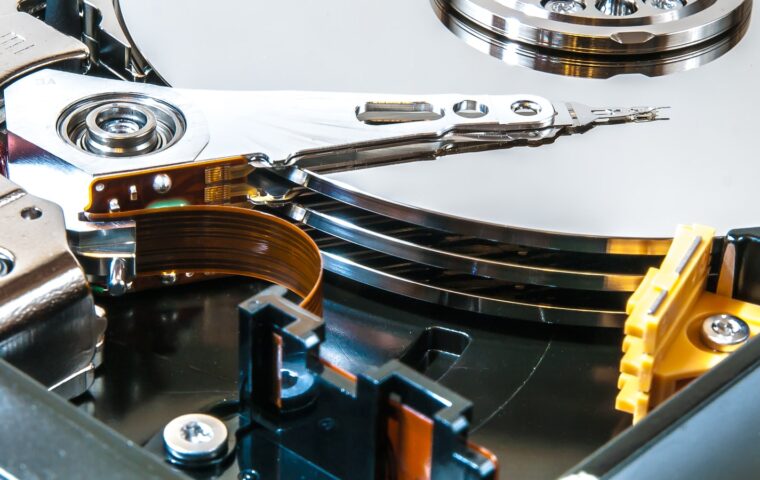
A hard drive stores data on round metal platters coated in a magnetic layer, spinning thousands of times a minute while a tiny arm moves a head across them to read and write. It is a mechanical device, closer to a record player than to anything purely electronic, and that physical movement shapes every one of its strengths and weaknesses.
A solid-state drive has no moving parts. It keeps data in flash memory chips, the same broad family used in memory cards and phone storage, and reads or writes by switching cells electrically. With nothing to spin up and no head to reposition, it reaches any piece of data in almost the same tiny fraction of a second, wherever that data happens to sit. That even response means an SSD holds steady speed no matter where a file lives, while a hard drive slows for information scattered across different parts of the platter.
Speed, noise, and power draw
The absence of moving parts is why an SSD feels so much quicker. A hard drive must wait for the platter to rotate the right spot under the head, adding a delay measured in thousandths of a second to every scattered request. An SSD has no such wait, so a computer starts, loads programs, and opens files noticeably faster, which is the single upgrade most people notice first. For scattered small reads, a solid-state drive can respond hundreds of times faster than a spinning one, which is what turns a sluggish minute-long start-up into a matter of seconds.
Not every SSD runs at the same pace, since the connection it uses sets a ceiling; where NVMe and SATA speeds part ways covers that side of things separately. Beyond speed, an SSD is silent, produces less heat, and draws less power, which also lengthens laptop battery life. A hard drive hums and clicks as it works and uses more energy keeping its platters spinning.
Durability and what ends a drive’s life
Because a hard drive spins and moves a head at high speed, a knock or drop while it is running can crash the head into the platter and destroy data instantly. An SSD, with nothing moving, shrugs off bumps that would kill a hard drive, which makes it far better suited to laptops that travel.
Each type wears differently. Flash cells accept a limited number of writes before they degrade, though modern drives spread wear so well that a typical user reaches obsolescence long before that limit, which how SSDs wear out traces step by step. Hard drives instead tend to fail from mechanical wear, sometimes with warning noises, sometimes without. Flash drives, by contrast, often fail more abruptly and silently, with no click or grind to warn you, so recent backups stay essential whichever technology holds your files.
| Factor | Hard drive | Solid-state drive |
|---|---|---|
| Random access speed | Slow, mechanical delay | Very fast, near instant |
| Noise and heat | Audible, warmer | Silent, cooler |
| Shock resistance | Fragile while running | Highly resistant |
| Cost per gigabyte | Lowest for large sizes | Higher, though falling |
| Best role | Bulk and archive storage | System and active files |
Cost per gigabyte and where hard drives still lead
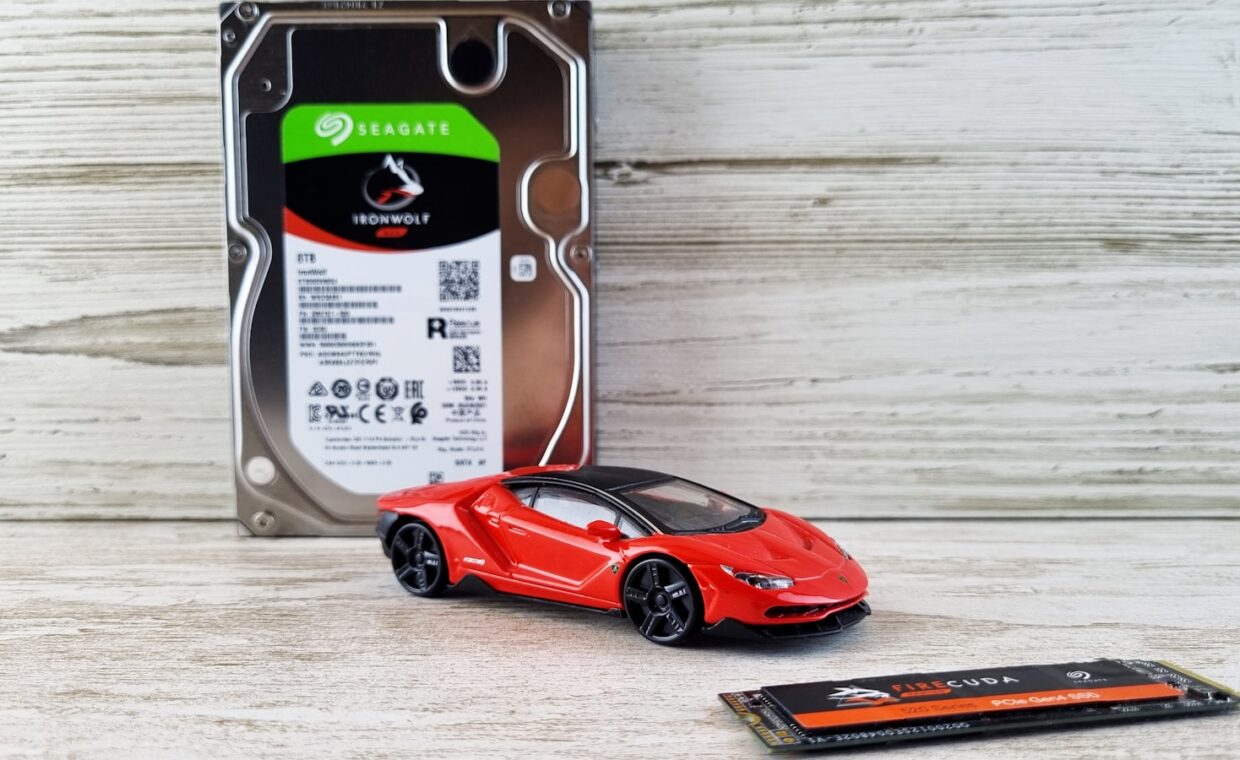
Price is the one arena where hard drives hold a clear advantage. For the same money, a hard drive offers several times the capacity of an SSD, and that gap widens at large sizes. Multi-terabyte hard drives remain far cheaper than equivalent SSDs, which is why bulk storage, backups, media libraries, and archives still favour them. As a rough guide, a large hard drive can cost a fraction per gigabyte of what an SSD of matching size does, and that difference only grows as capacities climb into the many-terabyte range.
Raw capacity is not the whole story, though, since a slow drive can bottleneck a task even when it has plenty of room. Comparing the speed a drive actually delivers, not just its size and price, is the better habit, and reading a drive’s real speed shows how to do it. For files you rarely touch, the hard drive’s low cost usually wins that trade.
Where each type fits today
For the drive that holds the operating system and the programs you use daily, an SSD is the clear choice, since its speed transforms how responsive the whole computer feels. Nearly every new laptop and prebuilt desktop now ships with one for exactly this reason, and adding an SSD is the most effective way to revive an older machine still running a hard drive. Swapping a tired hard drive for even a modest SSD often does more for felt speed than a processor or memory upgrade, because storage was the real bottleneck all along.
Hard drives keep a place wherever capacity per dollar matters more than speed, such as a desktop’s second drive for photos and video, a network storage box, or an external backup. Pairing the two, an SSD for the system and a hard drive for bulk, gives many desktops the best of both. On the spinning drive, it pays to watch for the signs a hard drive is failing before it takes your data with it.
Making the choice
For a single drive in a laptop or everyday desktop, choose an SSD and pick the capacity you can afford, because the speed benefit reaches everything you do. Only when you need very large storage cheaply, and the files are ones you access occasionally, does a hard drive become the better primary pick.
Hard drives are not obsolete, they have simply retreated to the role they still do best, holding a lot of data for a little money. Solid-state drives own the job of making a computer feel fast. Matching each technology to the work it suits, rather than treating one as the only answer, gives the best result for the money.
Quick answers
Are hard drives obsolete now?
No, though their role has narrowed. Solid-state drives have replaced hard drives as the main drive in most new computers because they are far faster. Hard drives remain the cheapest way to store large amounts of data, so they continue to serve backups, media libraries, and network storage. For bulk capacity on a budget, they still make solid sense.
Do SSDs fail more often than hard drives?
Generally no. Without moving parts, SSDs tolerate shocks and vibration that damage hard drives, and their overall failure rates are similar or lower for typical use. SSDs do have a finite write limit, but most users retire a drive long before reaching it. Both types can fail without warning, so keeping a current backup matters regardless of which you use.
Should I use an SSD for the system and an HDD for storage?
For a desktop with room for two drives, yes, this is an excellent setup. The SSD holds the operating system, programs, and files you use daily, giving fast startup and loading, while the hard drive stores large libraries and backups cheaply. Most laptops have space for only one drive, so there you would pick a single SSD sized to your needs.