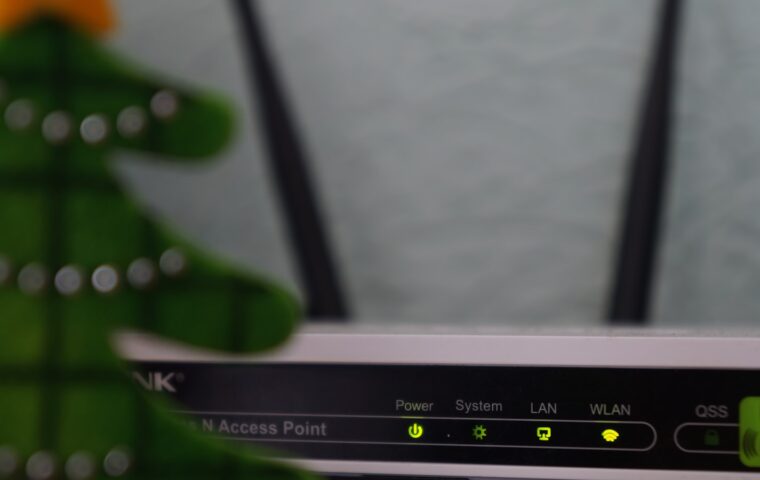
A new router usually works the moment it is plugged in, which is exactly why so many stay in their factory state for years. The same connection carries email, banking, cameras and work calls, yet the settings that guard all of that sit untouched behind a web page most people open once and never revisit. Securing a home network is not about buying extra gear. It is about closing a short list of doors that ship open by default. This guide walks through the changes that matter and the reasoning behind each one, so the effort goes where it counts.
The admin account nobody changes
Every router has two separate passwords, and people routinely confuse them. One protects the Wi-Fi. The other protects the router’s own control panel, the place where every other setting lives. Manufacturers ship that admin account with a printed username and password, often something as plain as admin and admin, and those defaults are published in searchable lists. Anyone who reaches the login page can try them in seconds.
Change the admin password to something long and unique, and change the username too if the router allows it. This single step decides whether the rest of your settings can be quietly undone by someone else. If you ever forget it, a physical reset button restores the factory login, so there is little risk in choosing something strong.
Encryption that protects the air
Wi-Fi broadcasts in every direction, through walls and out to the pavement, so the only thing stopping a stranger from reading it is encryption. The setting to look for is WPA3, or WPA2 if your devices are older. Both scramble the traffic between each device and the router. Avoid WEP and open networks entirely, because WEP can be broken in minutes and an open network protects nothing at all.
Encryption strength is tied to the Wi-Fi generation your hardware supports, and mixing very old devices can force the whole network onto weaker settings. The gap between generations affects speed as well as safety, the point the guide on how Wi-Fi versions compare also covers. Pick the strongest option every device on the network can accept, then set a Wi-Fi passphrase that is long rather than fiddly to type.
Firmware, the update people forget
Router software, its firmware, contains the same kind of flaws found in any other software, and manufacturers patch them over time. The problem is that routers rarely announce updates the way a phone does, so the fixes sit unused. A router running three-year-old firmware may carry known holes that are trivial to exploit.
Many current models can update themselves if you turn automatic updates on, which is the sensible default for most homes. Older units need a manual check every few months through the admin page. After a firmware change it is worth confirming the connection still behaves normally, the kind of check the guide on measuring a connection properly sets out, since an update occasionally resets a preference you had chosen earlier.
Keeping untrusted devices apart
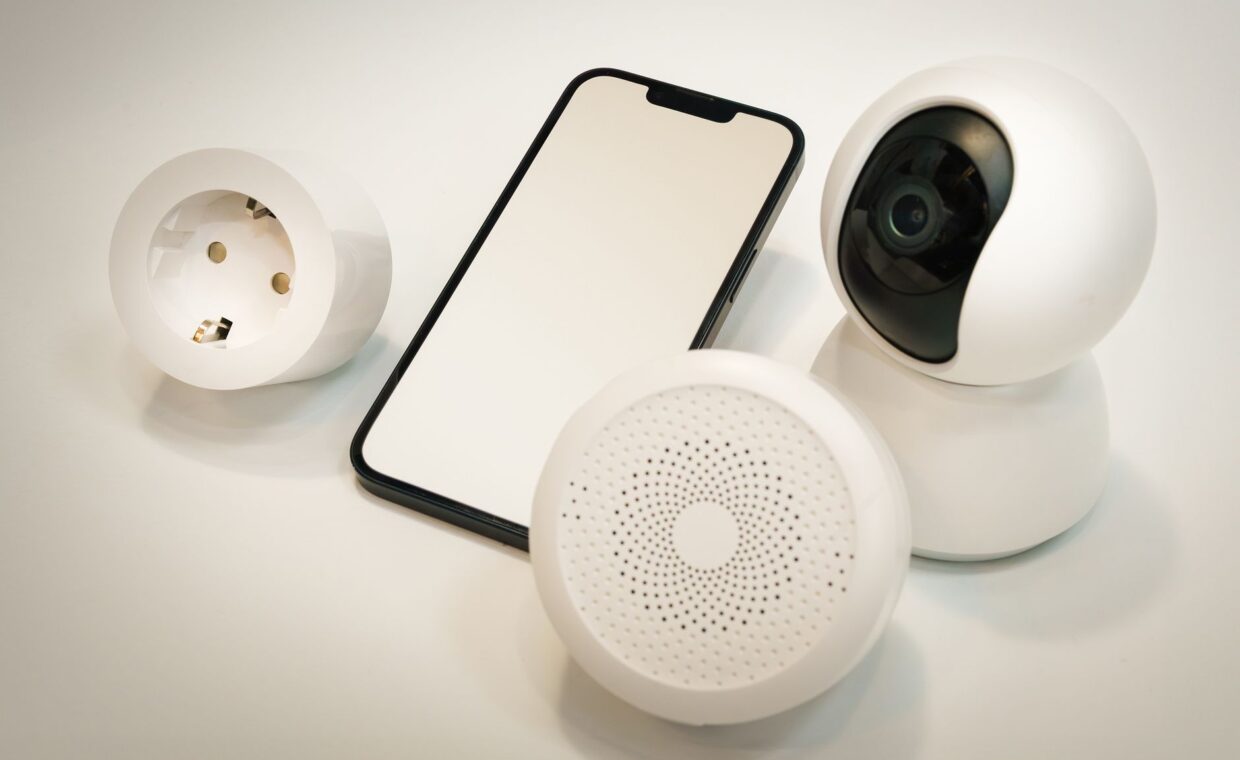
Not every gadget deserves the same trust as your laptop. Smart plugs, cheap cameras and streaming sticks often run software that is never patched, and a single weak device can become a foothold into everything else on the network. Keeping them at arm’s length limits the damage if one is compromised.
Most routers offer a guest network, a second Wi-Fi name that cannot see the main one. Put visitors and disposable smart-home gadgets there. More capable routers can group devices by their hardware identifier, so you can recognise exactly what is connecting, the sort of detail the guide on how device hardware addresses work explains. The aim is simple: keep the things you cannot fully trust away from the files, backups and computers you care about.
Features worth switching off
Routers ship with conveniences that widen the attack surface more than most owners realise. WPS, the push-button pairing feature, has a long record of weaknesses and is best disabled. Remote management, which lets you reach the admin page from outside the house, should stay off unless you genuinely need it, because it exposes that login to the whole internet.
UPnP lets programs open ports automatically, which is handy for some games but can be abused, so weigh it against your needs. Be cautious, too, about stacking your own router behind an existing one, since that can create the layered addressing problem the guide on two routers in a row describes. Each feature you leave on is a door, so close the ones you never use.
A ten-minute security pass
If you want a single sitting that covers the essentials, work through these in order:
- Log in to the router’s admin page and set a long, unique admin password.
- Switch encryption to WPA3, or WPA2 if some devices are older, and never WEP.
- Set a Wi-Fi passphrase of at least twelve characters that you have not used elsewhere.
- Turn on automatic firmware updates, or note a date to check manually.
- Enable the guest network and move cameras, plugs and visitors onto it.
- Disable WPS and remote management unless you actually rely on them.
- Review the list of connected devices and remove anything you do not recognise.
None of these require special knowledge, and together they close the gaps that opportunists lean on most.
Where this leaves you
Security at home is less about any single product and more about removing easy opportunities. The admin login, the encryption setting, current firmware and a little separation between trusted and untrusted devices account for the large majority of real-world risk. None of them cost money, and none take long once you know where they live in the settings.
What changes over time is the number of devices you own, so the useful habit is a short review every few months rather than a one-off effort. Check for firmware updates, glance at the list of connected devices, and make sure nothing new has landed on the main network that belongs on the guest one. A network that is looked at occasionally stays far safer than one configured perfectly once and then forgotten.
Frequently asked questions
How do I secure my home Wi-Fi?
Start with encryption and passwords. Set the network to WPA3 or WPA2, choose a Wi-Fi passphrase of twelve characters or more, and change the router’s admin password away from the factory default. Then turn on automatic firmware updates and move untrusted gadgets to a guest network. Those four actions, done once and reviewed occasionally, cover most of what matters for a typical home.
What are the most important router settings?
The admin password comes first, because it protects every other setting. After that, the encryption type should be WPA3 or WPA2, automatic updates should be on, and WPS and remote management should be off. A guest network for cameras and visitors rounds out the list. These few choices influence security far more than any single advanced option buried deeper in the menus.
Is my home network safe?
No network is perfectly safe, but most home networks are far weaker than they need to be simply because defaults were never changed. If your admin password is still the factory one, encryption is old, or firmware has not updated in a year, there are real gaps. Work through the checklist above and your network moves from an easy target to one not worth an intruder’s effort.