Every device on your home network needs an address before it can send or receive anything, yet you almost never type one in. Phones, laptops, consoles and smart plugs all join the network and simply work, and the quiet service making that happen is DHCP. It hands each device a working address the moment it connects, then keeps track of which device holds what. Learning how it operates explains why your gadgets connect on their own, why two of them occasionally clash, and when it makes sense to pin an address down by hand.
What DHCP does and where it lives
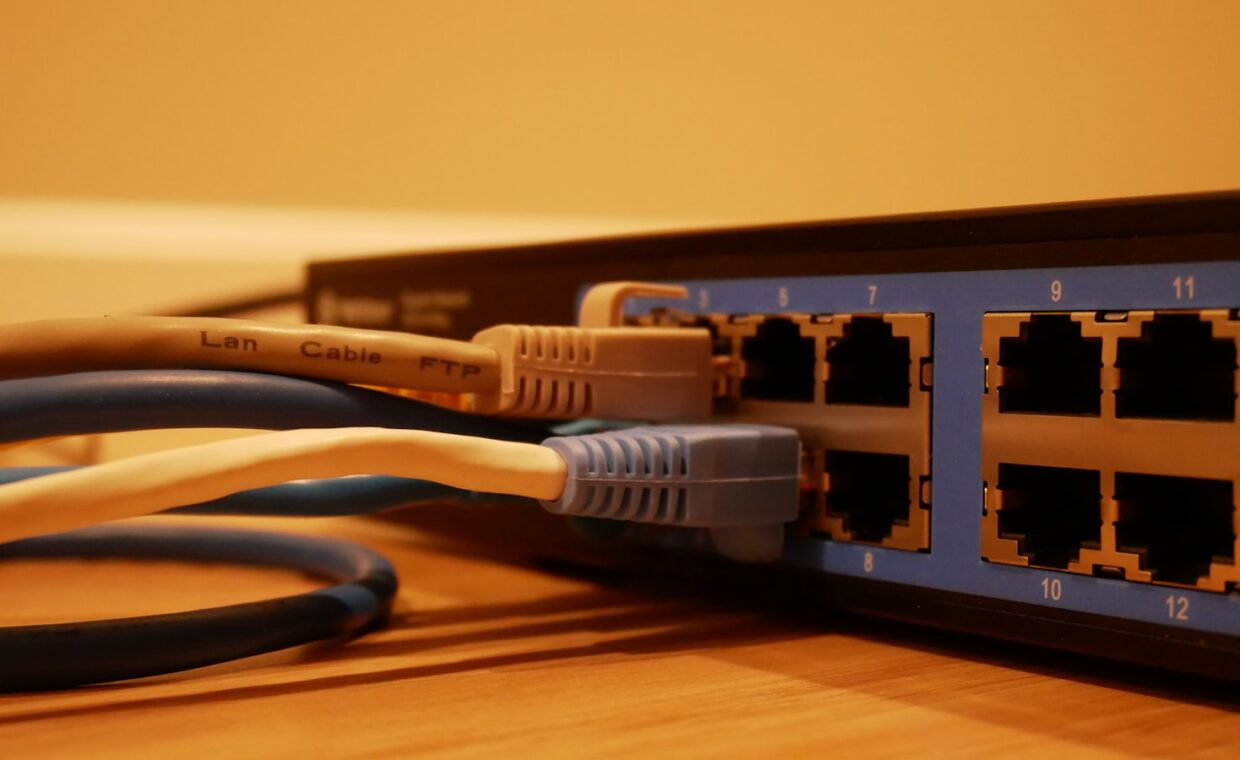
DHCP stands for Dynamic Host Configuration Protocol, and its task is to give out network addresses automatically. Rather than a person assigning a number to every device, a single DHCP server keeps a pool of available addresses and lends them out on request. On a home network that server almost always runs inside the broadband router, which is why the box in your hallway quietly manages every device that joins.
The addresses it hands out are the internal ones your devices use to reach each other and the router, not the single address your home shows to the wider internet. That split between inside and outside numbers is set out in the explainer on the two kinds of network address. Because the router runs the service for the whole house, its settings are where any DHCP behaviour is changed, a role covered in the overview of what the home router handles.
How a device leases an address
Getting an address is a short back and forth that finishes in well under a second. When a new device connects, it and the DHCP server exchange four messages, sometimes remembered by the initials DORA.
- Discover: the device broadcasts a request, in effect asking whether any DHCP server is listening.
- Offer: the server replies with an address it is willing to lend, drawn from its free pool.
- Request: the device accepts that particular offer and asks to take the address.
- Acknowledge: the server confirms, records the assignment, and the device begins using the address.
The server ties each lease to the device’s hardware identifier so it knows which machine holds which address. That identifier, explained in our coverage of the fixed hardware label every device carries, is how the router tells your laptop from your phone even when both hold addresses from the same pool.
More than just an address
A DHCP offer carries more than a number. Alongside the address, the server passes the details a device needs to actually use the network: which router to send outside traffic through, which servers to ask when turning names into addresses, and how large the local network range is. It also states how long the lease lasts, after which the device renews it, usually keeping the same number. Most home routers set that lease to somewhere between a few hours and a day, and a device tries to renew about halfway through, well before it expires, so the address stays steady in daily use. This is why a device that gets its address by DHCP rarely needs any manual setup at all.
When to reserve or fix an address
Automatic assignment suits most devices, but some are easier to manage at a steady address. A home printer, a network drive or a machine you reach by number is simpler to use when it always answers in the same place. There are two ways to arrange that, and they are not the same thing. The difference between letting the router assign a number and hard coding one into the device is covered in the comparison of addresses that stay put versus ones that rotate.
The tidier method is a DHCP reservation, where you tell the router to always give a chosen device the same address from its pool. The device still uses DHCP, so it keeps receiving the router and name-lookup settings automatically, but its number never changes. Hard coding an address inside the device instead takes it outside the pool, which works but risks clashes if the router does not know that number is already spoken for. A reservation avoids that risk, because the router itself stays in charge of the number.
When DHCP goes wrong
Most of the time DHCP is invisible, so trouble shows up as connection problems rather than obvious errors. A device showing an address that starts with 169.254 has usually failed to reach the DHCP server and assigned itself a fallback that cannot get online. Devices that connect but load nothing, or a network where new gadgets fail to join while older ones stay on, often point back to the same source.
Simple steps clear a surprising share of these. Restarting the router resets a stalled DHCP service and a pool that has run out of free addresses. Reconnecting the affected device forces a fresh lease request. If the pool is genuinely too small for the number of devices you own, widening its range in the router settings gives DHCP more addresses to lend. Checking the router’s list of connected devices also shows which addresses are already in use, which makes an exhausted pool or a duplicate easy to spot.
Where this leaves you
DHCP is the reason a home network feels effortless despite the bookkeeping underneath. It removes the need to plan and type addresses, prevents most collisions by tracking what it has lent, and quietly reissues addresses as devices come and go. For the great majority of households it needs no attention at all, running from the router on its default settings.
The moments it becomes worth understanding are narrow but real: setting a reservation so a printer stays reachable, widening the pool for a crowded network, or recognising a self-assigned address when something will not connect. Knowing what the service does, and that it lives in the router, turns those occasional puzzles into quick fixes rather than mysteries.
Questions people ask most
What happens if I turn DHCP off?
New devices stop receiving addresses automatically, so they cannot join the network until you set an address on each one by hand. Existing devices keep working only until their current lease expires. Turning DHCP off makes sense only when another server is handing out addresses instead; otherwise most of your devices drop offline once their leases lapse and are not renewed.
What is a DHCP lease?
A lease is a temporary assignment of an address to a device for a set period, rather than a permanent grant. The device may use that address until the lease runs out, then renews it, usually keeping the same number. Leases let the network recycle addresses from devices that have left, so the pool is not permanently tied up by gadgets no longer connected.
Why do two devices sometimes get an IP conflict?
A conflict happens when two devices end up using the same address. It usually follows a hand-set address that overlaps the DHCP pool, so the router later lends a number a device already claimed. Rebooting the equipment or moving fixed addresses outside the pool range clears it. Well-run DHCP avoids conflicts on its own by tracking every address it has issued.