Storage that was quick when the drive was half empty can turn sluggish once it is nearly full, and the change is not your imagination. A drive close to capacity behaves differently from one with room to spare, on solid-state and mechanical drives alike, and the system that depends on it feels the strain. Understanding why a full drive slows down, and how much free space actually prevents it, saves you from blaming the whole computer for a problem that a little housekeeping fixes. This guide explains what those last few gigabytes are really doing to your machine.
Free blocks and SSD write speed
A solid-state drive cannot overwrite data in place. It writes in small pages but can only erase in larger blocks, so to reuse space it must gather the still-wanted pages, move them elsewhere, and erase the block. The controller keeps a reserve of already-erased blocks so that ordinary writes stay fast, drawing from that pool instead of pausing to erase first. When the drive is nearly full, the pool of ready blocks shrinks, and writes increasingly wait for erase-and-rewrite work to finish before they can land.
Most consumer drives also set aside part of their fast flash as a cache that accepts writes at high speed before folding them into denser, slower storage. A full drive has little room for that cache, so sustained writes fall back to the drive’s native speed, which can be several times slower. The extra shuffling raises write amplification too, meaning more physical writing happens per unit of data, and that steady grind is part of how writes accumulate into wear.
Swap, temporary files, and system headroom
The operating system treats free disk space as working room, not merely as a place to park files. When memory fills, it moves less-used pages to a swap or page file on disk. If the disk is full, that overflow has nowhere to go and the system stalls or begins closing programs. Applications lean on temporary space too, since browsers cache pages, video editors scratch large preview files, and installers unpack before they commit anything.
Beyond that, the operating system itself needs headroom to stay healthy. Updates download and stage gigabytes before installing, restore points and snapshots need space to exist, and logs and search indexes grow quietly in the background. A system drive with no free room cannot install updates, cannot create a restore point before a risky change, and in the worst case will not boot cleanly. You can watch the slowdown surface in a sustained transfer test, the kind described in measuring a drive’s true speed.
Fragmentation on mechanical drives
A spinning hard drive suffers a different penalty as it fills. New and edited files must be tucked into whatever scattered free gaps remain, so a single file ends up split across distant parts of the platter. Reading it then means the head physically moving between locations, and those seeks add up to real delay. The fuller the drive, the fewer contiguous gaps exist, so fragmentation worsens exactly when free space is already scarce.
Solid-state drives do not pay this seek penalty, because any location is reached equally fast, which is why defragmenting them achieves nothing useful and merely spends write cycles, a point covered in why defragmenting an SSD backfires. On a hard drive, occasional defragmentation still helps, though keeping some free space helps more by giving new files room to land in one piece from the start.
Common mistakes that fill a drive
Most full-drive slowdowns trace back to a handful of avoidable habits rather than to genuinely running out of things to store.
- Letting the system drive fall below roughly ten percent free, so the operating system loses the working room it quietly relies on.
- Keeping years of photos, video, and downloads on the system drive instead of moving them to a second drive or external storage.
- Assuming an SSD is immune to fullness, when its write speed and cache both depend on having free blocks available.
- Forgetting the hidden space users: restore points, hibernation files, temporary caches, and old update files that linger after installing.
- Emptying files into the recycle bin or trash and believing the space is back, when it returns only once the bin is emptied.
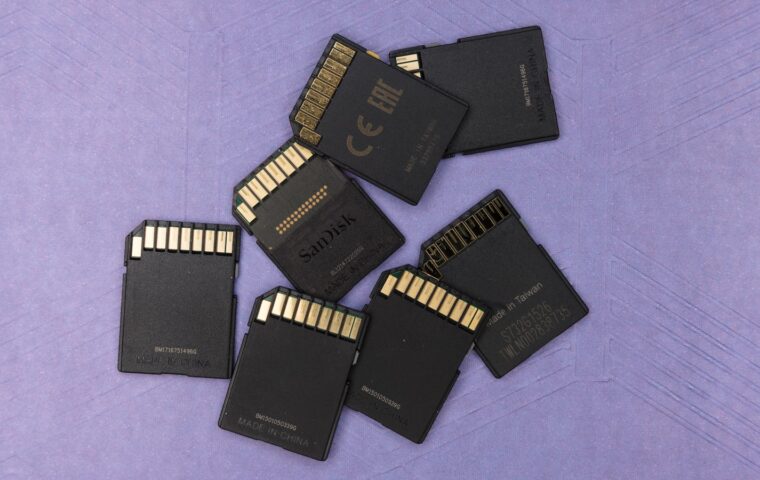
- Filling a memory card to the brim and expecting steady speed, since small controllers slow down too, as the tiers in what SD card speed classes mean describe.
How much to keep free
A useful rule of thumb is to leave about ten to fifteen percent of the drive unused, and closer to twenty percent on a solid-state system drive you write to heavily. The figure is not magic, it is simply enough room for the controller’s spare blocks, the write cache, swap, temporary files, and update staging to all coexist. A data-only drive that you mostly read from can safely run fuller than a busy system drive without the same penalties.
In absolute terms, leaving ten to twenty gigabytes free on a modern system drive covers routine operating-system needs, though heavy workloads such as video editing want far more scratch room than that. If a drive keeps creeping toward full, the durable fix is to move large, rarely changed files off it rather than to shave a little each time, because the pressure returns as soon as you stop looking.
Keeping a drive comfortable
A drive that is always near full is a drive working against itself, spending effort on erase cycles, fragmented seeks, and starved caches instead of on your actual work. The fix is rarely a faster or bigger drive on its own, since a new drive fills up the same way if the habits behind it do not change. The real fix is leaving deliberate headroom and treating free space as a resource the system needs, not as wasted capacity waiting to be used.
Check your drives every few months, move the large files that quietly accumulate, and clear the caches and old update data that pile up unseen. A system drive kept comfortably below capacity stays responsive, installs its updates, and protects itself with restore points, all things it simply cannot do once the last gigabytes are gone. Storage rewards a little breathing room more reliably than almost any other part of a computer.
Questions readers ask
Does a full drive slow a computer?
Yes, in two ways. A nearly full solid-state drive loses the free blocks and cache space its controller relies on, so writes get slower. A full system drive also starves the operating system of room for swap, temporary files, and updates, which can stall the whole machine. Keeping ten to twenty percent free usually restores normal speed without any change of hardware at all.
How much free space should I keep?
As a general guide, aim to keep a drive between ten and fifteen percent empty, and nearer twenty percent on a solid-state system drive you write to often. In plain numbers, ten to twenty gigabytes covers everyday operating-system needs, while video editing or virtual machines want more. Drives you only read from can run fuller than a busy system drive without noticeable trouble.
Why does my PC slow when storage is full?
Several effects stack up together. The SSD has fewer ready-erased blocks, so writes slow and its fast cache shrinks. The operating system runs short of room for the swap file, temporary data, and update staging, so it stalls or thrashes. On a hard drive, files fragment across scattered gaps and take longer to read. Freeing space and leaving headroom reverses most of the slowdown.