Two drives can both be called M.2, both slide into what looks like the same slot, and still refuse to work together, because the name describes a shape rather than a single standard. Storage listings mix physical sizes, connector notches, and signalling types under a handful of overlapping terms, which is how a shopper ends up with a stick that does not fit or fits but stays dark. This guide untangles the common form factors, the keying that decides compatibility, and the checks that confirm what a particular machine will actually accept.
Reading an M.2 size code
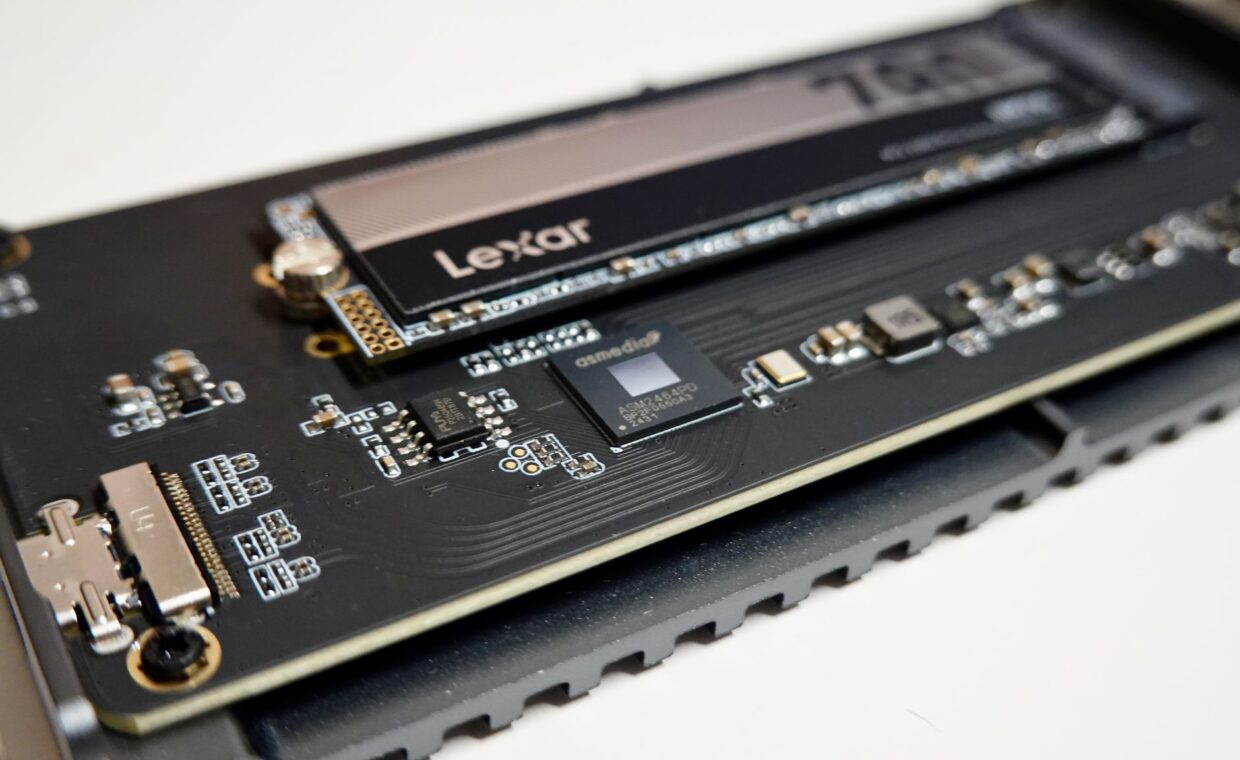
The numbers printed alongside an M.2 drive give its physical dimensions in millimetres. A code like 2280 means twenty two millimetres wide and eighty long, while 2242, 2260, and 22110 keep that width but change the length. Since nearly every consumer drive is twenty two millimetres wide, length is the figure that matters for whether a stick reaches its mounting point.
Length matters because the slot has a fixed standoff, the small post the far end screws into. A board built for 2280 usually places that post at the eighty millimetre mark, so a shorter drive may work with an adapter while a longer one will not fit at all. Compact laptops and handhelds often accept only the shorter sizes.
Keying and what it allows
The notches cut into an M.2 connector, called keys, stop incompatible drives from seating. Consumer SSDs use B key, M key, or a combined B and M cut. An M key edge carries the four PCIe lanes that fast NVMe drives need, a B key edge carries fewer lanes plus SATA signalling, and a drive notched for both can physically enter either style of socket. The notch is a mechanical promise about which signals the pins expect.
Keying is also where a frequent confusion lives. M.2 is only the form factor, the slot and card shape, and it can carry either older SATA signalling or modern NVMe over PCIe. A socket may support one, the other, or both, so matching the key is necessary but not always sufficient.
The shapes side by side
It helps to see the main options against the factors that actually differ between them.
| Form factor | Typical interface | Where it appears |
|---|---|---|
| M.2 2280 | NVMe or SATA | Most desktops and laptops |
| 2.5-inch | SATA | Older laptops, upgrades, enclosures |
| U.2 | NVMe | Workstations and servers |
| Add-in card | NVMe | Desktop PCIe slots |
2.5-inch SATA against M.2
The 2.5-inch drive is the flat rectangular unit that replaced laptop hard disks, connecting through a SATA data cable and a separate power lead in a desktop, or through a single edge connector in a laptop bay. It is limited to the SATA interface, so even a good example tops out well below what NVMe reaches, though for general use the difference is smaller than the numbers imply.
Its advantages are compatibility and enclosures. Almost any machine from the last fifteen years has a SATA port, and the 2.5-inch shape drops neatly into portable caddies, which makes it a common choice for external drives where you might also want the contents scrambled against loss, the protection the explainer on how portable drive encryption works describes.
U.2 and add-in cards
Two less familiar shapes round out the picture. U.2 looks like a 2.5-inch drive but carries NVMe over a cabled connector, and it appears mostly in workstations and servers where many fast drives sit in hot-swap bays. It rarely appears in ordinary desktops.
Add-in cards take a different route, slotting an NVMe drive straight into a PCIe expansion slot like a small graphics card. This suits desktops that have run out of M.2 sockets, and the larger surface leaves generous room for cooling. Both formats deliver the same flash underneath, so the choice is about how the drive connects rather than any change to the storage itself, and the same generation questions our look at choosing a PCIe generation covers still apply.
Single sided against double sided
An M.2 drive can carry its flash chips on one face or on both. A single sided drive keeps everything on the top, staying thin, while a double sided drive stacks chips on the underside to fit more capacity into the same length. The distinction matters in slim laptops and some handhelds, where a raised standoff or a cooling plate leaves clearance for one side only.
Desktops almost never care, since their slots sit in open air, but a double sided drive forced into a tight bay can press against the board or fail to seat flat. When a laptop maker specifies single sided, treat it as a firm requirement rather than a suggestion, because the physical clash has nothing to do with the drive being otherwise capable, or with the flash itself, which ages the same either way, the wear path our rundown on how drives age with use traces.
Confirming what your machine takes
Guesswork is where money gets wasted, so a few checks pay off before buying. Compatibility depends on the connector, the signalling, and the length together, not on any one of them alone. The form factor never changes how the flash inside behaves, only how it plugs in, which keeps worries like silent corruption separate from the fitting question, the risk the guide on catching silent data corruption addresses.
The checks themselves are quick. Start from the exact model number of the laptop or motherboard and read its storage specification. Note the supported lengths, such as 2280 or 2242, along with the keying the socket uses. Confirm whether the slot speaks NVMe, SATA, or both, since the shape alone does not settle it. Finally, respect any single sided requirement on thin machines before ordering a high-capacity stick, because clearance problems are easy to overlook on paper.
Where this leaves you
The maze feels worse than it is because one word, M.2, hides several independent decisions. Separate them and the path clears: the length must reach the standoff, the key must match the socket, and the interface the socket speaks must match the drive. Get those three right and the rest, capacity and generation, is a matter of budget rather than fit.
For most upgrades the answer is a 2280 M.2 NVMe drive, which nearly every recent board accepts, with the older 2.5-inch SATA format reserved for legacy machines and external caddies. U.2 and add-in cards stay niche, useful when sockets run out or servers demand them. Reading the specification once, before buying, spares the tedious job of returning a drive that never fit.
Common questions
Which SSD form factor fits my machine?
Check three things in the device manual: the supported physical lengths, the socket keying, and whether the slot carries NVMe, SATA, or both. Most recent laptops and desktops take an M.2 2280 drive, while older systems may only offer 2.5-inch SATA bays. Thin laptops sometimes require single sided drives or shorter lengths, so confirm those details before ordering anything.
Is M.2 the same as NVMe?
No. M.2 is a physical form factor, the shape and connector of the card, while NVMe is a communication protocol that runs over PCIe lanes. An M.2 slot can carry NVMe or the older SATA interface depending on how it is wired, so some M.2 drives are fast NVMe units and others are SATA speed. Always confirm which signalling a given socket and drive use.
What does M.2 keying mean?
Keying refers to the notches cut into an M.2 card edge and the matching bumps in the socket. Common consumer keys are B, M, and combined B and M. The key determines which pins and lanes are present, so an M key edge supports the four PCIe lanes NVMe drives use, while a B key edge offers fewer lanes and SATA. Matching keys lets the drive seat correctly.