Laptop webcams are almost universally disappointing, and the reason is not carelessness. It is physics. A webcam has to fit in a lid a few millimetres thick, which leaves room only for a tiny sensor and a fixed lens. Understanding that constraint explains why the image looks the way it does, and what actually improves it.
Why the image is grainy
Image quality is driven far more by sensor size than by the megapixel count printed on the box. A larger sensor gathers more light, and more light means less noise, better colour, and more detail. A laptop webcam sensor is a fraction of the size of even a modest phone camera sensor, so in anything less than bright, even lighting it struggles, producing the grain and smearing people recognise instantly.
Megapixels do not rescue this. A higher resolution sensor of the same tiny physical size simply divides the same small amount of light into more, noisier pixels. This is the same misunderstanding our look at reading a spec sheet warns about, where a bigger number implies a better result that the underlying hardware cannot deliver.
What actually improves a laptop webcam
- Light, from the front. The single biggest improvement costs nothing. Face a window or a lamp rather than sitting with light behind you. A tiny sensor with good front lighting looks dramatically better than the same sensor in a dim room.
- Clean the lens. A smear of fingerprint oil on the tiny lens softens the whole image. A gentle wipe with a dry cloth is worth doing.
- Fix the background exposure. A bright window behind you tells the camera to darken everything, silhouetting your face. Move so the strongest light is in front.
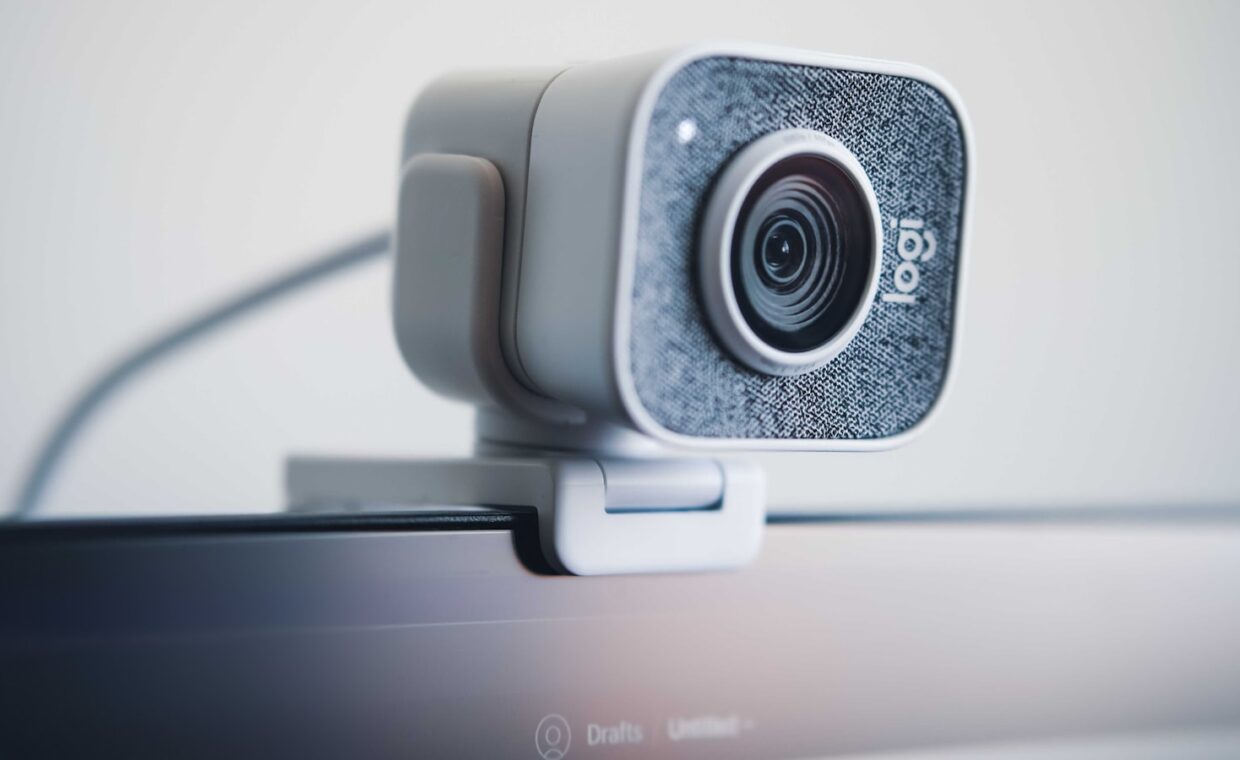
- Use an external webcam for anything that matters. A dedicated external camera has a larger sensor and a better lens, and it is the only genuine hardware upgrade. For frequent video calls it is a small cost for a large improvement.
The indicator light and what it guarantees
Most laptops wire the webcam’s activity light to the same power as the camera itself, so the light physically cannot be on without the camera being powered, and cannot be off while the camera records. On machines built this way the light is a genuine hardware guarantee. Not every machine is wired this way, though, which is why the light alone is reassuring rather than absolute.
| Protection | What it stops | What it does not |
|---|---|---|
| Activity light | Silent recording, on most machines | Nothing, if software controls the light separately |
| Physical shutter or cover | Any image capture, absolutely | Microphone access |
| Software permission controls | Unauthorised app access | Malware operating below the permission layer |
| Disabling the camera in firmware | All access until re-enabled | Convenience, since re-enabling needs a reboot |
What a physical cover actually protects
A physical shutter is the one protection that is absolute, because it blocks the lens regardless of software state. If the camera being active without your knowledge is a concern, a cover is the definitive answer, and many laptops now ship with one built in. The important caveat is that a shutter does nothing for the microphone, which is a separate device with its own access, so a cover addresses the camera and only the camera.
The realistic threat model for most people is not a sophisticated attacker but an application granted access it did not need. Both major systems now show which apps can reach the camera and let you revoke it, and reviewing that list occasionally is more useful than worrying about the sensor itself. Keeping the system updated matters here, because camera permission controls improve over time, which ties into the wider point about how long a device keeps getting updates.
Autofocus, framing and the software layer
Most laptop webcams use a fixed focus lens, set to a distance that suits a face at arm’s length. That is why you cannot hold a document up to the camera and have it sharpen: there is no focus mechanism to move. A few higher-end machines add autofocus, but for the majority the fixed distance is a deliberate simplification that keeps the module thin and cheap.
Increasingly the interesting work happens in software rather than the sensor. Background blur, automatic framing that keeps your face centred, and low-light correction are processing tricks applied after the sensor captures its noisy image. They can genuinely help, and they can also introduce artefacts, smearing the edge between you and a blurred background or hunting for a face in poor light. When the processing goes too far the result looks worse than the raw image, which is the same tension between capture and processing that appears across small cameras generally.
The connectivity and setup around it
An external webcam connects over USB, and on a busy setup it competes for the same bandwidth as everything else, which is worth remembering if you run it through a dock alongside storage and displays. The behaviour of how a machine handles multiple connected devices is the same principle at work. If your built-in camera has genuinely failed rather than merely disappointing, that is unusual, and before assuming hardware it is worth ruling out a disabled setting or a driver, the kind of check that a look at firmware settings that actually matter can resolve, since some machines expose a camera toggle there. Wireless video calls also depend on a stable connection, so if calls look worse than the camera should manage, the network may be the limit, covered in the piece on what each Wi-Fi generation actually delivers.
Questions readers ask
Why is my laptop webcam so grainy?
Because the sensor is tiny, which is a physical constraint of fitting a camera into a thin lid. Small sensors gather little light, so they produce noise in anything but bright, even lighting. The fix that costs nothing is to face a light source. The only hardware fix is an external webcam with a larger sensor.
Can someone watch me through my webcam?
It is possible in principle through malware or an over-permissioned app, but on most laptops the activity light is wired to the camera’s power and cannot be off while it records. For certainty, use a physical shutter, which blocks the lens absolutely. Review which apps have camera access and revoke any that do not need it.
Is a webcam cover worth using?
If unauthorised camera access concerns you, yes, because a physical cover is the only absolute protection. It blocks the lens regardless of software. Remember it does nothing for the microphone, which is separate, so a cover secures the camera alone.