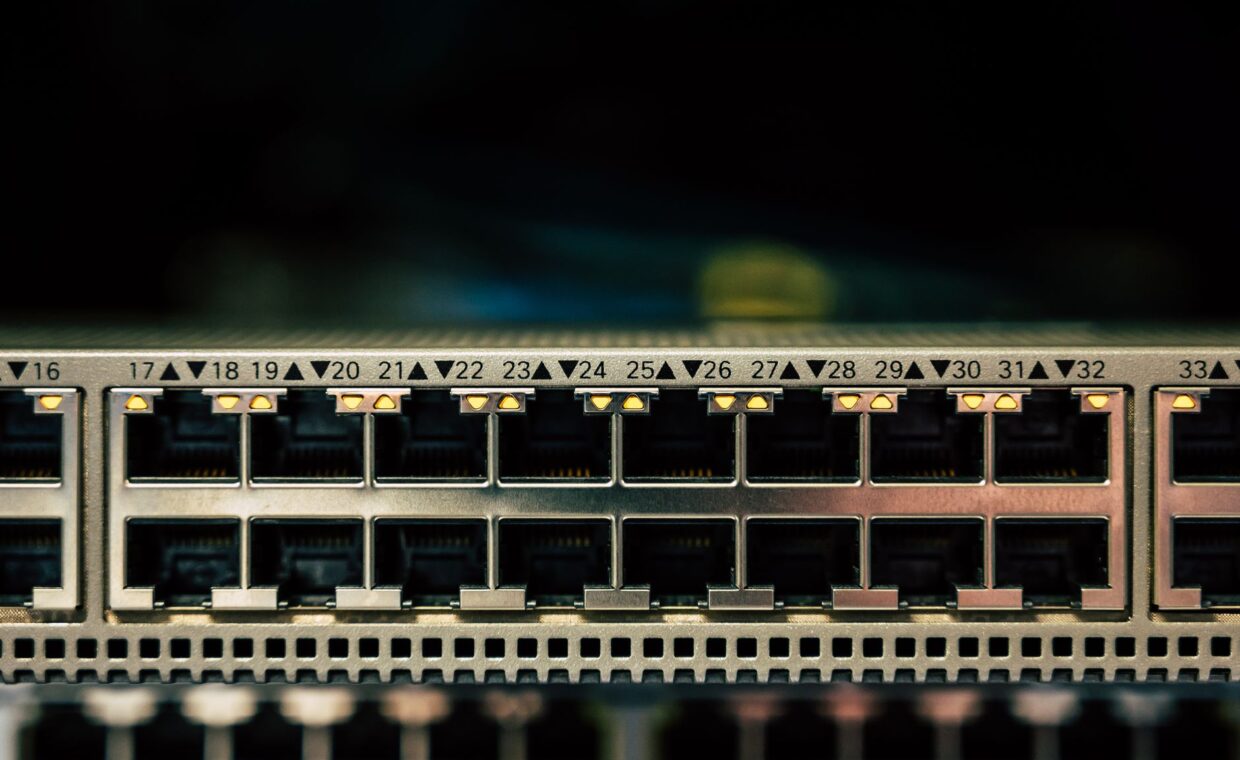
Most home routers ship with four wired ports, and a modern living room fills them quickly: a console, a smart TV, a streaming box, and a desktop leave nothing spare. The common instinct is to buy a second router, which tends to create more problems than it solves. A network switch is the tidier answer, and it costs very little. By the end you will know what a switch does, how managed and unmanaged models differ, how to add ports without disrupting your network, and what the speed numbers printed on the box actually mean.
What a switch actually does
A switch takes one wired connection and turns it into many, letting several devices share the same local network. It is not a splitter that copies one signal to every output. Instead it learns which device sits on each port and forwards every packet only to the port that needs it. That targeted forwarding keeps traffic between your console and your PC off the ports feeding the TV, so nothing slows down needlessly.
Because a switch works entirely on the wired side, it does not create or manage a Wi-Fi network, and it does not hand out addresses. It simply extends the wired part of the network you already have. Wireless devices still reach the router over the air, a path the comparison of the different Wi-Fi generations covers, while wired devices gain more sockets to plug into.
Unmanaged and managed models
An unmanaged switch is the plug-and-play kind. You connect it, plug in your devices, and it works with no configuration at all. For most homes this is the right choice, because there is nothing to set up and nothing to break. The unit simply passes traffic as fast as its ports allow, hour after hour. There are no menus to learn and no login screen to remember, which is exactly why this type dominates home use.
A managed switch adds a control layer. Through a web page or app you can split ports into separate virtual networks, give some traffic priority, watch usage per port, and turn ports on or off. That control matters in offices and for enthusiasts running servers, but it also brings a settings page you can misconfigure. A smart or lightly managed middle tier exists too, offering a few of these features without the full complexity.
Terms on the box, explained
Switch packaging is dense with numbers and abbreviations. The short glossary below translates the ones that affect your buying choice.
| Term | What it means |
|---|---|
| Gigabit | Ports that pass up to 1,000 megabits per second each |
| Fast Ethernet | Older 100 megabit ports, best avoided now |
| Unmanaged | No configuration, plug in and use |
| Managed | Configurable networks, priority, and monitoring |
| Uplink | The port that connects back to your router |
Adding ports without breaking things
The safe way to expand is to run one cable from a spare router port to any port on the switch, then plug your devices into the remaining switch ports. The switch and router sort out the rest automatically, because only the router is handing out addresses. There is no special uplink port to hunt for on modern gigabit units, since any port accepts the link back to the router. If the link light fails to come on, the usual cause is a dead cable rather than a setting, so swapping the patch lead is the first test worth trying.
You can also chain a second switch off the first if you run short again, though keeping the layout simple helps when tracing a fault later. If your real problem is weak wireless coverage rather than too few sockets, a switch will not help, and the choice between extenders and wired access points is the more useful comparison to read.
Why not just add a second router
A spare router can add ports, but out of the box it also runs its own address service and its own Wi-Fi network. Plugged in carelessly, that produces two networks handing out conflicting addresses, so devices lose their route to the internet or cannot see each other. You can disable those functions and force the router into a bridge-like mode, but that is fiddly and varies by model.
A switch avoids all of it. It has no address service to clash and no second Wi-Fi name to confuse your devices. For simply gaining wired sockets, it is the direct tool, whereas a second router is a general device you have to talk down into a smaller role. That extra step is easy to get wrong, and a half-configured router can leave part of the house without internet until you undo it.
Reading the speed rating
Port speed is the headline number, and gigabit, meaning 1,000 megabits per second per port, is the sensible baseline today. Cheaper 100 megabit switches still sell, and they throttle fast local transfers and quick internet plans alike. Since many connections now exceed 100 megabits, a slow switch can quietly cap what you paid for, a mismatch the overview of the common broadband technologies helps you spot.
A port rated at one gigabit describes the link to each device, not a shared total. Two devices copying files across the switch can each run near a gigabit at the same time. The rated figure is a ceiling rather than a promise, so treat it as the maximum the hardware allows, not the number you will always measure in daily use.
Choosing a switch for your home
For nearly every household the answer is a small unmanaged gigabit switch with five or eight ports. It is inexpensive, needs no setup, and quietly solves the shortage of sockets that a crowded router creates. Managed features are worth paying for only if you plan to separate networks or prioritize traffic deliberately, which few home users ever do.
Buy a couple more ports than you need today, since devices accumulate and chaining units later adds clutter. Match the port speed to your fastest wired device and your internet plan so the switch never becomes the bottleneck. Wired numbers, unlike the figures quoted for wireless in the look at everyday wireless throughput, tend to hold close to their rating, which is part of why a cable feels dependable.
Frequently asked questions
What is a network switch?
A network switch is a small box that turns one wired connection into several, so more devices can join the same local network by cable. It learns which device is on each port and sends each packet only where it belongs. It does not create Wi-Fi or hand out addresses; it simply extends the wired side of the network your router already runs.
Do I need a switch or another router?
If you only need more wired ports, a switch is the right tool. It plugs in and works with no configuration and nothing to clash. A second router brings its own address service and Wi-Fi network, which can conflict with your existing one unless you carefully disable those features. Choose a switch for sockets, and a router only when you want a separate network.
Are managed switches worth it at home?
For most homes, no. Managed switches let you build separate virtual networks, set traffic priority, and monitor each port, which suits offices and hobbyists running servers. A typical household never touches those controls, and the extra settings page is one more thing to misconfigure. An unmanaged gigabit switch is cheaper, simpler, and does exactly what a home network needs.