Every phone, laptop, and smart television on a home network quietly sends requests to advertising and tracking servers throughout the day. A network-wide ad blocker sits in the path of that traffic and turns away the requests you do not want, so the filtering happens once for the whole house rather than app by app on each gadget. This guide explains how the filtering actually works, what a small always-on box can and cannot stop, the hardware that fits the job, how to keep it from breaking pages, and the light upkeep it asks for afterward.
How DNS filtering decides what loads
Before a device can fetch anything, it asks a DNS resolver to translate a name such as tracker.example.net into a numeric address. A home ad blocker takes over that resolver role for your network. Each requested name is checked against blocklists of known advertising and tracking domains. When a name matches, the resolver hands back an empty or dead answer, so the browser never opens a connection and the ad or tracker is never downloaded. Names that match nothing resolve as normal and the page loads the way it should.
Because the decision happens at the naming stage, one rule covers every file that hangs off that domain, whether it is a banner image, a script, or quiet background telemetry. The device has no idea a filter sat in the middle of its request.
What it stops and what slips past
This approach works best against whole-domain targets. A tracker that lives on its own hostname vanishes without a trace. It struggles when adverts are served from the very same domain as the content you want, since blocking that domain would remove the site as well. Streaming services that splice adverts into the main video from their own servers are the clearest case, because the filter has no way to tell the advert apart from the programme.
It also cannot touch content an app has already chosen to load internally, and it cannot read inside an encrypted connection once that connection is open. A sensible view is that it removes a large slice of unwanted traffic, not every last piece of it.
Choosing the hardware
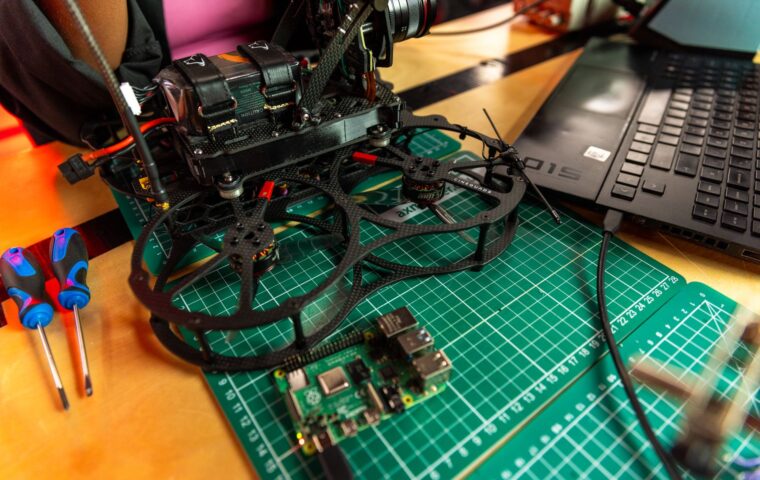
The demands here are tiny. A DNS filter answers short questions and stores small lists, so it needs very little processing power and only a modest amount of memory. A Raspberry Pi 4 with 2GB of RAM, an older Pi 3, or any low-power mini PC will carry a household without effort. What matters more is that the machine stays on all day, draws little electricity, and runs from reliable storage rather than a tired memory card.
Filtering is one of the more practical roles a small board can take on around the house, a point the roundup of things people run on a Pi lays out in more detail. Give the box a wired connection if you can, since every lookup on the network passes through it.
From bare box to network-wide blocking
The setup follows a predictable path, and an always-on filter often ends up sharing a shelf with a local smart-home controller, another small service that benefits from staying on the network full time. The steps below assume a fresh Linux install.
- Fit the chosen computer with a fixed local IP address so other devices can always reach it at the same place.
- Install a DNS filtering package, with Pi-hole and AdGuard Home being the two common choices, onto the clean system.
- During setup, pick one or two upstream resolvers to handle the names that are allowed through.
- Add a small starter set of blocklists, then hold back from piling on dozens more straight away.
- Change the router’s DHCP settings so it hands out the filter’s address as the DNS server for every device.
- Load a few normal sites and run a speed test to confirm pages still arrive quickly.
- Check for gadgets that ignore the router, since some televisions hard-code their own resolver, and deal with those one by one.
Keeping everyday sites working
Occasionally a blocklist is too aggressive and catches something a site needs, so a login button does nothing or images fail to appear. The fix is an allowlist. Open the query log, find the domain that was refused at the moment the page misbehaved, and permit that single name. Within a minute the site behaves again while the rest of the filtering stays intact.
It helps to add lists slowly and note what you changed, so that when a problem shows up you can connect it to a recent edit rather than guessing. Most breakage traces back to one over-eager entry, not the tool as a whole.
The upkeep it asks for
Day to day, the box wants almost nothing. Blocklists refresh themselves on a schedule you set, often weekly, and the software needs an occasional update for security. The main human task is glancing at the query log now and then to spot a site that broke or a device behaving oddly. That habit of watching a small machine is the same one that keeping tabs on any home server’s health rewards, and it takes only a few minutes.
Storage is the one part that ages. A cheap memory card writing logs every day can wear out, so many people move the system to a small solid-state drive or limit how much logging is kept.
Where this leaves you
A network filter changes the default for every device at once, including the ones that have no ad settings of their own, such as televisions and games consoles. It will not clear streaming adverts baked into a video, and it is not a substitute for careful browsing, yet it removes a broad layer of tracking with a single small computer that sips power.
The same board can later pick up a second duty once you trust it, for instance the camera setup many tinkerers add next, so the initial effort keeps paying off. Start with a short blocklist, watch how the house reacts for a week, and expand only when nothing is breaking.
Frequently asked questions
How does a network-wide ad blocker work?
It acts as your network’s DNS resolver, the service that turns website names into addresses. Every device asks it for names, and it compares each one against lists of advertising and tracking domains. Matching names get a dead answer, so those connections never form, while ordinary names resolve normally. One box therefore filters every phone, computer, and smart device on the network at the same time.
Will it break websites?
Sometimes a blocklist refuses a domain a site genuinely relies on, which can hide images or stop a button working. This is uncommon and easy to reverse. The query log shows which name was blocked when the page failed, and adding that single name to an allowlist restores the site in under a minute without weakening the rest of your filtering.
What hardware do I need for it?
Very little. A Raspberry Pi 3 or 4, or any low-power mini PC, has ample capacity because DNS lookups are light work. The real requirements are that it stays powered around the clock, uses little electricity, and ideally connects by cable. Reliable storage matters too, since a worn memory card is the most common cause of trouble on these small always-on machines.