Two laptops on the same shelf can look nearly identical, yet one lets you double its memory three years later while the other locks you into whatever you chose on the first day. That single difference, whether the memory is fixed to the mainboard or seated in a swappable slot, shapes how long the machine stays useful and how much you should sensibly spend at purchase. Plenty of confident advice about it is wrong, or at least a decade out of date. By the end here you will know what to check, what the labels mean, and where the genuine trade-offs sit.
What soldered and socketed actually mean
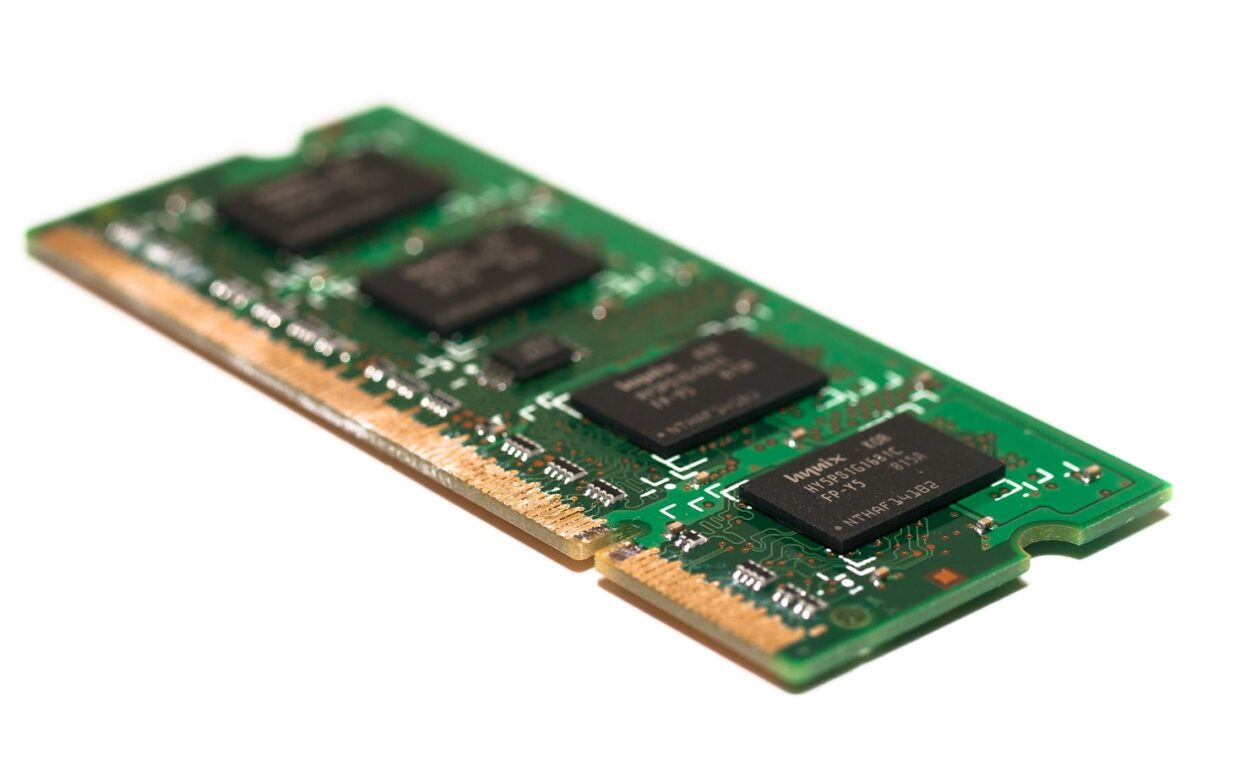
Laptop memory comes in two main physical forms. Socketed memory uses small sticks called SO-DIMMs that push into a slot on the motherboard and clip into place. You can lift one out and fit a larger one with a screwdriver and a few spare minutes. Soldered memory is fixed directly onto the board at the factory, with the chips permanently attached. There is no slot, no clip, and no supported way to remove them without specialist rework gear that most repair shops do not keep.
A third arrangement sits between the two and causes most of the confusion. Some laptops solder part of the memory and leave one open slot, so a model sold with 8 GB might accept an extra stick and reach 24 GB. Newer replaceable modules such as LPCAMM2 muddy the picture further, giving much of the power saving of soldered chips while still lifting out like a card. Which of these three a laptop uses matters more than the raw number printed on the box.
Why soldered memory became common
Manufacturers did not solder memory purely to annoy buyers. Fixed chips sit closer to the processor, which helps with the very fast low-power memory used in thin machines, and they let designers shave millimetres off the chassis. Fewer connectors also means fewer points that can loosen or corrode over time. Those are real engineering gains, not merely excuses dressed up as features.
The cost is repairability and flexibility. A soldered board that develops a memory fault usually has to be replaced whole, which raises the stakes on any repair estimate and feeds directly into whether a laptop is worth repairing rather than replacing, the calculation our piece on deciding when a fix pays off works through. Seeing that trade-off up front changes how you read a spec sheet.
Checking whether a model can be upgraded
You cannot tell by looking at a closed laptop, and marketing pages rarely say plainly. The reliable route is the manufacturer’s service manual or maintenance guide, which lists memory as either soldered or as SO-DIMM slots with a maximum capacity. Independent teardown videos and repair databases show the same thing, often with the board photographed. Search the exact model number rather than the product family, because two versions of one name can differ inside.
Firmware can also report the layout once you own the machine. Some systems show slot occupancy in their setup screens, part of the wider set of firmware options that shape how a laptop behaves, the ground our guide to what those low-level menus control covers. If a listing quotes only a memory figure with no mention of slots, treat it as soldered until a reliable source proves otherwise.
Buying enough memory the first time
When memory is soldered, the amount you buy is the amount you keep for the life of the machine. That turns a small saving at checkout into a long-term limit. Paying to move from 8 GB to 16 GB might feel steep against a fixed configuration, but it is far cheaper than replacing the laptop early because the memory can no longer keep up with the browser tabs and apps you actually run.
| Factor | Soldered memory | Socketed (SO-DIMM) |
|---|---|---|
| Later upgrade | Not possible | Swap or add a stick |
| Physical size | Allows thinner designs | Slightly thicker |
| Repair after fault | Often the whole board | Replace one stick |
| Buy-now guidance | Size up generously | Start modest, add later |
Sizing correctly means matching the memory to how long you plan to keep the laptop and what you ask of it, not to today’s bare minimum. Working through how much memory a machine really needs, the question the primer on picking a sensible memory figure answers, is worth doing before you commit to a soldered configuration you cannot revisit.
Storage upgrades follow different rules
Memory and storage are separate questions, and people often assume that a soldered-memory laptop must have soldered storage too. That is frequently untrue. Many thin machines with fixed memory still use a standard M.2 SSD held by a single screw, which you can replace with a larger or faster drive. A few models do solder the storage as well, and a smaller number use a proprietary card, so the same careful check applies.
Because storage tends to be the easier and cheaper thing to change, some buyers deliberately choose a modest drive and plan to enlarge it later, a route the explainer on fitting a bigger drive yourself lays out step by step. That plan only holds if the model actually has an accessible slot, so confirm it the same way you confirmed the memory.
Making the choice
Soldered memory is not automatically a bad sign, and a free slot is not automatically a reason to buy. The sensible approach is to separate the two decisions the physical design forces on you: how much memory you need for the machine’s whole life, and how much storage flexibility you want to keep in reserve. A soldered laptop bought with generous memory can serve you longer than a socketed one bought too lean and never actually upgraded.
Read the service manual, confirm slots and maximums for the exact model, and price the larger memory option against the cost of replacing the laptop sooner. Once you treat memory and storage as distinct choices, and buy for the years ahead rather than the launch-day minimum, the soldered-versus-socketed question stops being a trap and becomes just one more spec you have checked with open eyes.
Common questions
How do I tell if my laptop’s RAM is soldered?
Look up the exact model number in the manufacturer’s service or maintenance manual, which states whether memory is soldered or fitted in SO-DIMM slots. Teardown videos and repair databases confirm it visually. If a product page quotes only a memory size with no mention of slots or a maximum, assume it is soldered until a reliable source shows otherwise.
Is soldered RAM always a dealbreaker?
No. Soldered memory allows thinner designs and slightly better power efficiency, and it fails rarely. The real risk is buying too little, since you cannot add more later. If you choose a generous amount up front that suits how long you plan to keep the machine, soldered memory is a reasonable trade rather than a fault to avoid at any cost.
Can I upgrade the SSD even if the RAM is soldered?
Often yes. Memory and storage are independent, so many laptops with fixed memory still accept a standard M.2 SSD held by one screw. Some models solder the storage or use a proprietary card, though, so check the exact model’s service manual first. If it lists a removable drive, enlarging storage is usually the simplest upgrade you can make.