Adding a monitor to a laptop should be as simple as plugging in a cable, and often it is. When it is not, the cause is almost always one of three things: the port does not carry video, the cable is the wrong kind, or the resolution and refresh you are asking for exceeds what the connection can deliver. Each has a clear fix once you know which one you are facing.
The port decides whether video is even possible
Not every port that fits a display cable can output video. A USB-C port only carries a display signal if it supports an alternate mode that reassigns some of its lanes to video. If it does not, no cable and no adapter will make a picture appear, because the capability is missing at the port, not the cable. This is the single most common reason a monitor stays black, and it is a laptop limitation rather than a fault.
HDMI and full-size DisplayPort ports always carry video, but they carry it to a version-limited ceiling. An older HDMI port might drive a 4K display only at 30Hz, which is unpleasant for anything but static content. Identifying what each port supports is exactly the sort of detail that hides on a spec sheet, as the article on reading a laptop specification properly lays out.
Matching resolution and refresh to the connection
| Connection | Comfortable ceiling | Where it struggles |
|---|---|---|
| HDMI 1.4 | 4K at 30Hz, or 1080p at 60Hz | 4K at a usable refresh rate |
| HDMI 2.0 | 4K at 60Hz | High refresh at 4K |
| DisplayPort 1.4 or USB-C alt mode | 4K at 120Hz, or dual displays | Two high refresh 4K displays at once |
| Thunderbolt or USB4 | Two 4K displays comfortably | Rarely a limit for laptop use |
If a display connects but looks soft or runs at the wrong resolution, the connection is negotiating a lower mode than the panel’s native one. That is usually a cable or port limitation, and dropping the refresh rate a step often lets the correct resolution through.
Why a second display sometimes will not appear
- The port lacks video output. Confirm the USB-C port carries a display signal, marked with a small display icon on many machines. If it is data and power only, use a port that supports video.
- The cable is charge-only or data-only. Many USB-C cables carry power and data but not video. Use a cable explicitly rated to carry a display signal.
- The laptop cannot drive that many displays. Some machines output only one external display stream regardless of how many ports they have. This is a hardware limit and no accessory changes it.
- The display is on the wrong input. Monitors do not always switch inputs automatically. Select the correct input on the monitor itself.
- A dock is in the way. Through a dock, display support depends on the host connection’s bandwidth. The behaviour of a docking station and how it divides bandwidth explains why a display that works directly can fail through a dock.
Scaling, and why text looks wrong
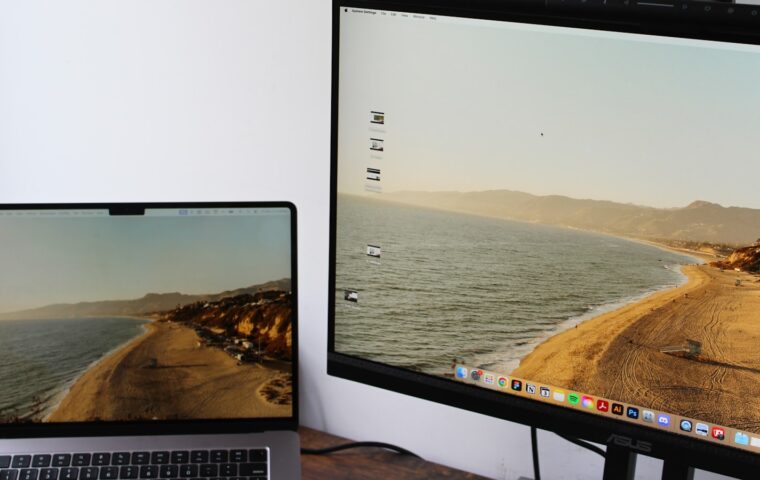
Connecting a high resolution external monitor to a laptop with a different pixel density forces the operating system to scale, and mixed scaling across two displays is where things get awkward. Windows dragged between a sharp laptop panel and a larger external display can shift size or blur momentarily. Both major systems handle this far better than they used to, but individual applications still vary, so it is worth checking that the software you rely on scales cleanly before committing to a very high resolution external panel.
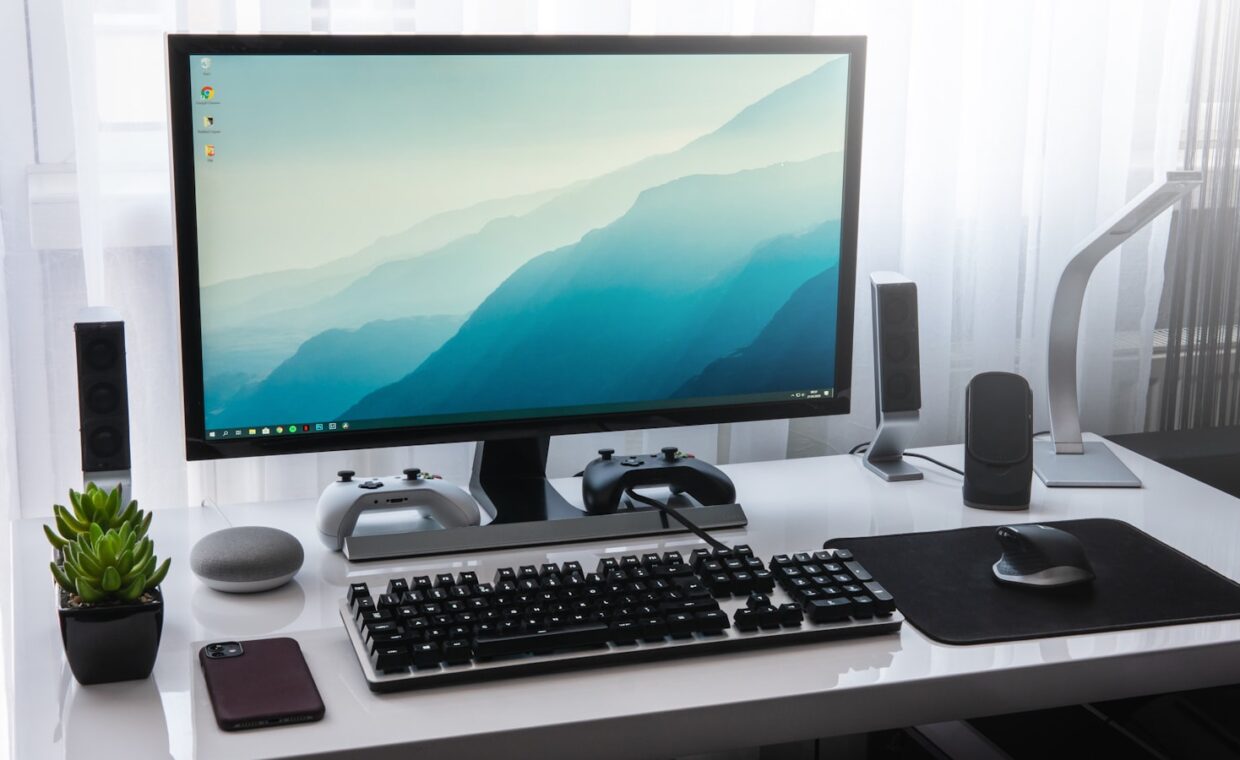
The comfortable arrangement for most people is an external display at a resolution and size that needs little or no scaling, positioned at eye height. That turns a laptop into a proper desktop setup and reduces the neck strain of looking down at a built-in screen. It pairs naturally with an external keyboard and mouse, which is also gentler on the laptop than working hunched over the built-in one.
Battery, heat, and the cost of driving a display
Driving an external display is work, and on battery it shortens runtime because the graphics hardware is pushing more pixels. On integrated graphics that work also competes for memory bandwidth, which is one reason a machine can feel less smooth driving a large external panel, a interaction discussed in the piece on how laptop hardware shares limited resources. If the laptop runs noticeably hotter with a monitor attached, that is expected, and the mechanics are the same as any sustained graphics load. A machine that has grown louder over time driving the same setup may simply need cleaning, a maintenance point covered under what rising fan noise indicates. For a genuinely portable machine, the weight you carry to get strong graphics is its own tradeoff, set out in the article on the weight, battery and power triangle. And if the external drive you keep at the desk feels slow whenever the monitor is active, that is the bandwidth competition described under how storage speed behaves in practice.
Quick answers
Why will my laptop not detect a second monitor?
Usually the port does not carry video, or the cable is a data and power only type that cannot carry a display signal. Confirm the port supports video output, use a cable rated for display, and check the monitor is set to the correct input. If all three are right and it still fails, your laptop may only support one external display.
Can any laptop run two external monitors?
No. Some laptops can only output a single external display stream regardless of how many ports they have. Driving two external displays reliably usually needs a Thunderbolt or USB4 port, or a machine that specifically states multi-display support. No dock or adapter overcomes a hardware limit in the laptop.
Why is my external monitor blurry?
Either it is running below its native resolution because the connection negotiated a lower mode, or the operating system is scaling the display and an application is handling that scaling poorly. Set the monitor to its native resolution, and if a step down in refresh rate lets the native resolution through, the cable or port was the limit.