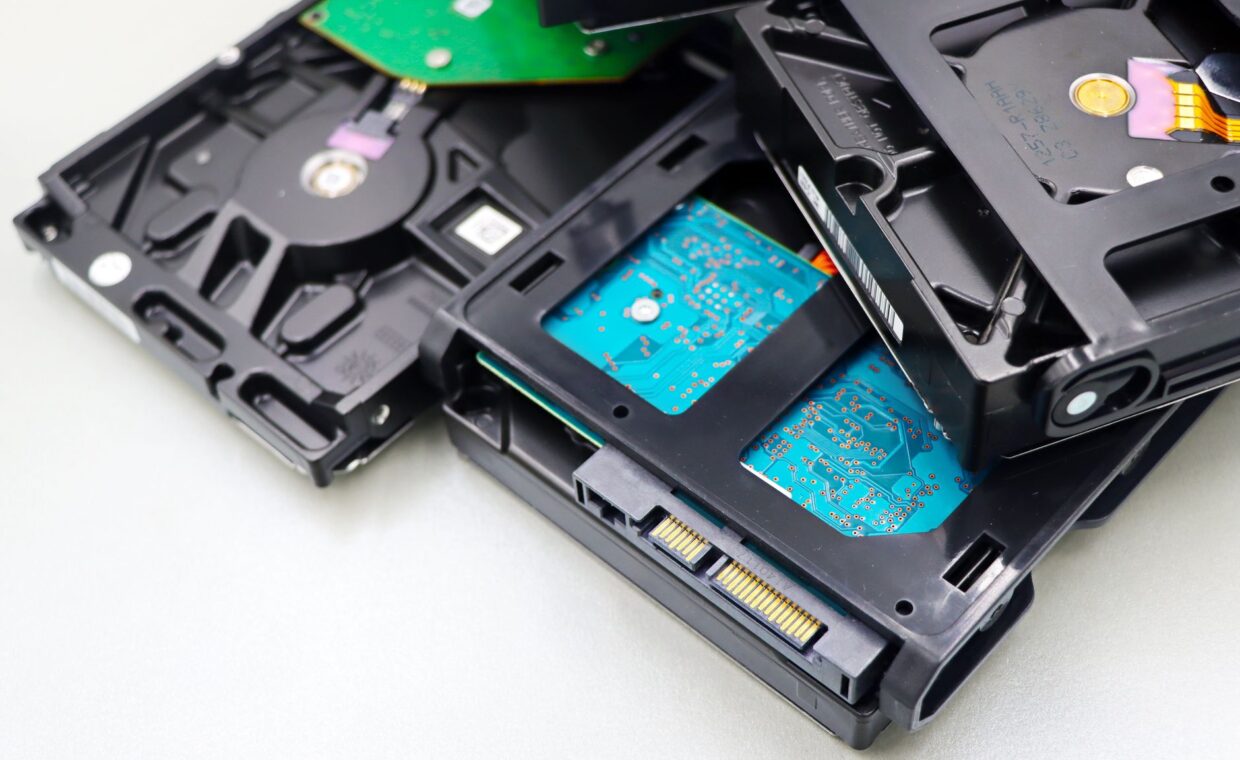
A disk image of a running server looks like a safe backup, yet it can quietly capture a broken snapshot that refuses to boot. Files change while the copy is being made, databases hold data in memory that never reaches the disk in time, and the result is an image that restores to a corrupt state. A backup you can actually restore is worth far more than one that merely exists. The sections below explain why imaging a running system fails, how file and block backups differ, keeping copies offsite, and proving a restore before you ever need it.
Why a live disk image can be inconsistent
Imaging a disk while the system runs copies blocks one after another over seconds or minutes. During that window, applications keep writing. A file copied early can reference data that only lands on disk later, so the two halves disagree in the finished image. Databases are the classic casualty, since they cache writes in memory and commit them in a careful order that a naive block copy ignores.
Snapshots help by freezing a consistent view at one instant, which is why filesystem or volume snapshots underpin most reliable backups. Even then, an application may need a moment of quiet, a flush of its buffers, to guarantee the snapshot is clean. The small server jobs that benefit from this care, from file shares to home automation, span the tasks covered in the guide to what a compact server takes on.
File-level versus block-level backup
A file-level backup copies individual files and folders. It is easy to browse, restores a single lost document quickly, and moves only what changed between runs. Its weakness is that it does not capture a system’s exact state, boot loader, partition layout and all, so rebuilding a full machine from files alone takes reinstallation and configuration.
A block-level backup copies the disk itself, sectors and structure included, which restores a whole system as it was. It is heavier and less selective, and it inherits the consistency problem unless paired with a snapshot. Many setups use both: block images for bare-metal recovery and file backups for day-to-day retrieval. The same split applies on smaller hardware, as the notes on saving a Pi’s card image describe.
Keeping a copy off the premises
A backup sitting on a second drive in the same box survives a failed disk but not a theft, a flood, or a power surge that takes the whole machine. An offsite copy answers that. It can be an encrypted upload to remote storage, a drive you rotate to another building, or a sync to a friend’s server in exchange for hosting theirs.
The guiding rule many people follow keeps three copies of the data, on two kinds of media, with one held offsite. Encryption matters once data leaves your control, so anything uploaded or carried away should be scrambled with a key you keep. A retired machine can serve as the offsite target, an idea the walkthrough on repurposing a spare laptop develops.
The first offsite copy is the slow one, since it moves everything, and a large collection can take days over a home upload link. After that, incremental runs send only the changes and finish quickly. Some people seed the first copy onto a portable drive, carry it to the offsite location by hand, and let later syncs catch up over the network, which sidesteps a painful initial upload.
Automating the whole routine
A backup you run by hand is a backup you eventually forget. Automation turns it into something that happens whether or not you remember, and a scheduled job is the usual tool.
- Pick a tool that supports snapshots and incremental runs, so each backup copies only what changed since the last.
- Write a script that quiesces databases, takes a snapshot, copies from it, then releases the snapshot.
- Schedule it for a quiet hour, and stagger local and offsite copies so both do not saturate the connection at once.
- Add logging and an alert on failure, because a silent job that stopped weeks ago is worse than none.
- Prune old copies on a retention schedule so storage does not fill and stall the whole routine.
Proving the backup by restoring it
An untested backup is a guess. The only proof is a restore, ideally to spare hardware or a virtual machine, where you rebuild the server and confirm it boots and serves. Do this soon after setting the system up, then on a regular cadence, because backups rot quietly: a changed path, a full disk, or an expired credential can break the job for months unseen. Verification adds another layer, since a backup tool that records checksums can confirm each restored file matches the original, catching silent corruption a plain copy would miss.
Heat can undermine a restore too, since a machine that throttles or shuts down mid-copy leaves a partial file behind. Keeping the hardware in its comfort zone, the point the article on managing a small board’s temperature makes, protects the process as much as the storage. Restore drills also teach you the steps in advance, before a real emergency forces you to learn them under pressure.
What this means in practice
A backup strategy for a home server is a set of linked choices, not a single copy. Take consistent snapshots so images are clean, combine file and block methods for both quick retrieval and full recovery, push a copy offsite against local disaster, and automate the lot so it runs without you. None of these steps is difficult alone, and together they turn a hopeful copy into a dependable safety net.
The test that matters is a successful restore, so schedule one and treat a failed drill as useful news rather than a setback. A server that holds photos, documents, and years of configuration deserves more than a single image made once and never checked. Build the routine, watch its logs, and rehearse the recovery, and a dead disk becomes an afternoon of work rather than a permanent loss.
Frequently asked questions
How do I back up a home server?
Combine a file-level backup for everyday retrieval with an occasional block image for full recovery, and base both on a filesystem snapshot so the copy is consistent. Keep one copy offsite and encrypted, against local disaster. Automate the job on a schedule, log its results, and alert on failure. Most importantly, test a restore to spare hardware so you know the backup actually works.
Can I image a running server safely?
Only with care. Imaging a live disk block by block can capture files and databases mid-write, producing an image that will not boot or that restores corrupt. The safe route is a filesystem or volume snapshot that freezes a consistent view in an instant, ideally after the applications flush their buffers. Image from the snapshot, not the live disk, and the copy stays coherent.
How often should I back up a home server?
Match the frequency to how much data you can afford to lose. For a server whose contents change daily, a nightly backup is a sensible baseline, with more frequent runs for busy databases. Keep several older copies so a fault caught late can still be undone. Whatever the schedule, an automated job and a periodic restore test matter more than the exact interval.